Installing & managing plugins
Plugins add new nodes and capabilities to the canvas. Before installing,
make sure you trust the source — plugin code runs on your machine.
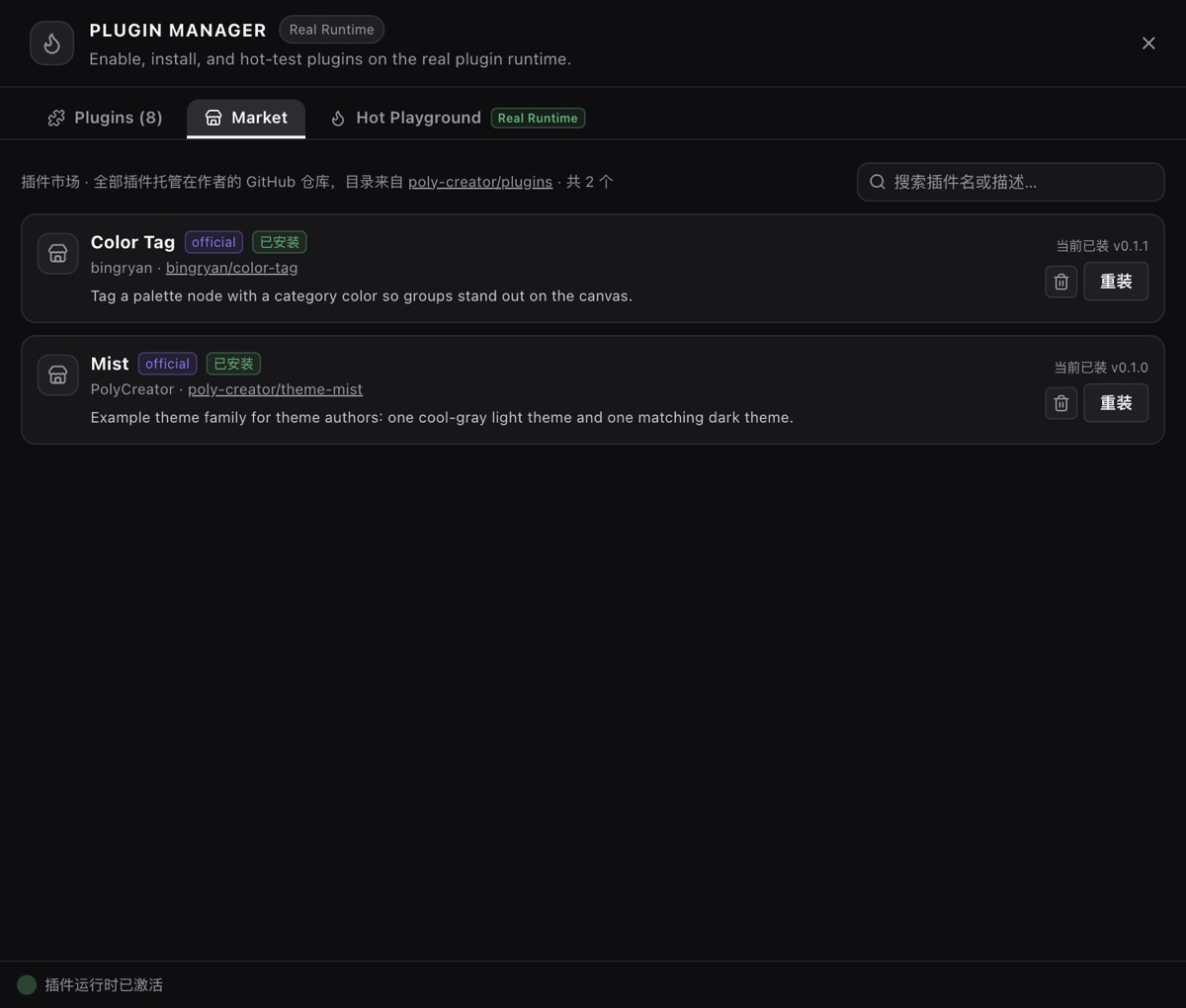
From the marketplace
Open the in-app “Market” tab, browse, and click install. This is the easy
path: version probing and integrity checks happen in the background.
From a URL
A release asset from the author's repo, or a zip link someone sent you — paste
it into the desktop app's “Plugin management → Install from URL”:
- Only http(s) links are accepted; anything else is rejected.
- Before installing you'll see a manifest summary (name, version, declared
permissions, trust level) — confirm, then install. - After download the in-package
integrity(entry-file hash) is verified;
a mismatch refuses the install.
From a local file
A downloaded zip can be installed locally — handy offline or for a package
you built yourself.
Deep-link installs
The site's “Install to PolyCreator” buttons use thepolycreator://install?url=... deep link:
- Button does nothing? Confirm the desktop app is installed first. Otherwise
copy the download link under the button and install it manually via
“Install from URL” above. - Deep-link installs show a native confirm dialog (name, version,
permissions, source host) and run the exact same checks as URL installs —
there is no second code path.
Updates & uninstalls
- Marketplace entries track the latest stable release by default: the author
tags once, the desktop app spots the new version, and you update without
reinstalling. - Pinned entries (tag + sha256 together) install the pinned version, and
byte mismatches refuse the install. - Remove plugins you no longer need from plugin management; already-installed
copies are unaffected by registry removals.
Won't install?
See the install-failure section of the FAQ — most cases
are missing release assets or network trouble.