Getting started
New to PolyCreator? Three steps and you are creating within ten minutes.
1. Download and install
Open the download page and pick the installer for your system:
macOS, Windows, and Linux builds are all there, each card showing the version,
size, and SHA-256 checksum.
Current builds are not code-signed, so expect one system prompt on first launch:
- macOS: allow it under System Settings → Privacy & Security.
- Windows: on the SmartScreen block, click “More info → Run anyway”.
2. Sign in
Desktop sign-in uses a browser-confirm flow: click sign-in in the app, a
browser window opens, confirm there, and the app finishes signing in
automatically. Local features work regardless of sign-in state.
See Account & sign-in for details.
3. Meet the interface
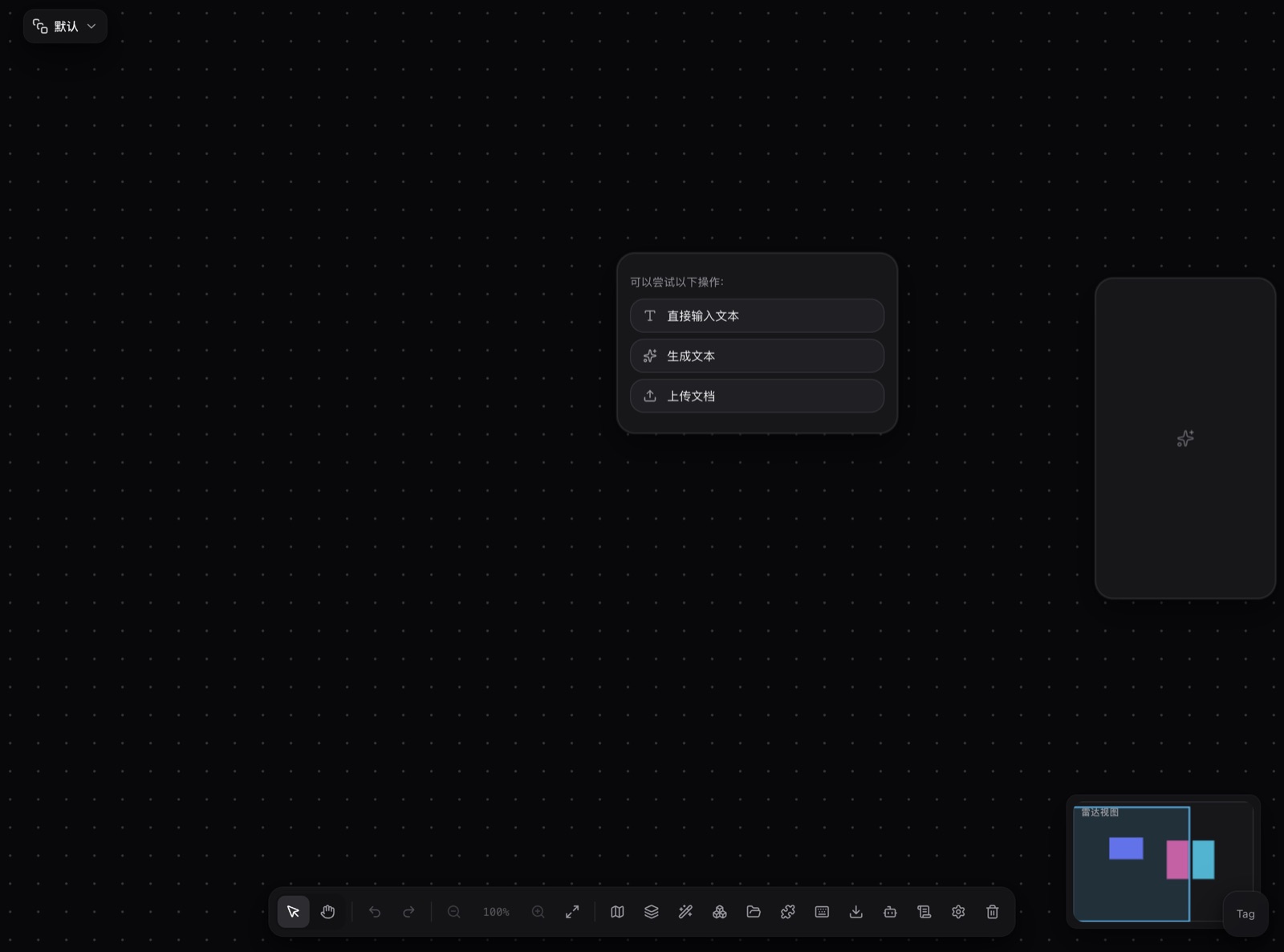
- Canvas: text, image, video, and audio are nodes on one editable graph —
wires are the workflow. - Plugin marketplace: the in-app “Market” tab installs community plugins;
see Installing & managing plugins. - Themes: pick a look in the theme marketplace; one click
reskins the app. See Using themes. - Settings: model and provider configuration lives in settings; see
Models & providers.
Next steps
- Want a new look? Read Using themes.
- Want to bring your own API key? Read Models & providers.
- Hit a problem? Check the FAQ first.