AI product photography white background to lifestyle: mockups and model shots without a studio
AI product photography white background to lifestyle: mockups and model shots without a studio
Long-tail queries: AI product photography white background to lifestyle · AI model mockup clothing no photoshoot · Etsy product images AI background guide
Search "AI product photography white background to lifestyle" and you find people holding one white-background product shot, wanting it on a kitchen counter or a desk, with only one option left: book a studio. Search "AI model mockup clothing no photoshoot" and you find clothing sellers who know a flat-lay sells nothing, and that paying a model for a season often costs more than the stock itself. Search "Etsy product images AI background guide" and you find sellers already stuck in the listing editor, wondering which background is safe and whether buyers will think the item is not what they received.
This guide has three parts: where the pain comes from, how the general solutions compare, and how PolyCreator runs the actual chain. Three before-after cases sit in the middle.
1 · The problem: a studio day costs more than the product
- A studio sells days. Lighting, props, backdrop paper, the model's schedule, the retouching pass. Spread over a few dozen SKUs, the per-item cost exceeds the margin. In peak season the dates are booked and the fallback is stacking products against a white wall.
- White-background listings look flat. The same white backdrop, the same angle, the same shadow on every photo means a shopper scrolling the results cannot read material, finish, or actual size.
- Size is not one thing. A sample on a size-S mannequin does not tell a size-L shopper how it will hang. One model for a whole season excludes most of your audience, and "it does not look like the picture" ends up near the top of the return reasons.
- A picture that misrepresents the product is a real risk. If a generated scene shifts the color or exaggerates a feature, the marketplace can treat it as misleading, and you carry the returns.
2 · General solutions: five routes, each owning one segment
| Route | Cost | Fidelity | Fits |
|---|---|---|---|
| Real studio shoot | High: the day, the props, the model, the retouching | Highest, checkable against the physical item | High-price items that must match the product exactly |
| 3D mockup rendering | Medium: a template subscription or an outsourced render | Shape is accurate, materials need tuning | Structural shots of bags, electronics, hardware |
| Cut-out compositing | Low to medium: one scene photo plus a compositing pass | Edges and lighting give it away fastest | Fixed compositions, simple backgrounds, volume work |
| Generative outpainting / background replacement | Low: a model call per image | Depends on the model and the prompt; product detail can drift | Lifestyle scenes and seasonal variants |
| Virtual try-on / model simulation | Low to medium: a model call plus human selection | Silhouette and drape roughly right, size still unreliable | Clothing listings, main images and scene shots |
Two things are worth reading twice. Compositing is the cheapest and the easiest to get wrong: a semi-transparent edge pixel, the direction of the contact shadow, the color temperature of two light sources, and anyone who works with photos spots it in a second. Outpainting and background replacement are a redraw, not a paste. The model re-reads the picture from your prompt, so the product color, the logo, or the wording on the bottle can shift quietly. "Keep it unchanged" does something real, but it is a soft constraint.
3 · Three before-and-after cases
Case one: white-background product shot to a kitchen counter scene (Etsy / Amazon listing)
- Input material: one white-background shot, subject whole and uncropped, mostly frontal, no harsh reflections or hard shadows. Keep the long edge at 1000 pixels or more, or the redraw smears the detail.
- Steps: drop an upload node on the canvas and send the white-background shot into it. Uploading an image turns that node into an image node, so the product shot sits there. Wire it into an image generation node, pick a model that accepts reference images, write the scene prompt, send.
- How to write the prompt: what to preserve first, where to place it second, light and lens last.
Keep the shape, color and logo on the cup in @Image1 completely unchanged, place it on a pale wood kitchen counter, a window on the right, afternoon side light, background slightly out of focus, 35mm lens, vertical composition. - Common failures and fixes: the lettering on the cup warps, so add "do not alter any text or logo on the cup" at the end of the prompt and keep the environment sentences after the preservation sentence. The product floats above the counter, so add "natural contact shadow where the base meets the counter". The whole look drifts, so change one thing per run instead of angle, tone and material at once.
Case two: flat-lay clothing to a model wearing it
- Input material: one flat-lay (front-facing, few wrinkles, clean background) plus a one-line description of the style: cut, fabric, color, buttons or pockets.
- Steps: wire the flat-lay into an image node as the reference, write down the model's build, the pose, how the garment sits, and the shooting environment. Chain another node behind it to fix the collar, the buttons, the waistline. The flat-lay node never changes.
- How to write the prompt:
Reference the linen shirt in @Image1: same round neckline, same two buttons, same linen drape and off-white color; worn by an adult female model, autumn street style, three-quarter turn, natural standing pose, hands down and away from the hem, pale grey wall background, soft natural light. - Common failures and fixes: the garment turns into a different design, so name the anchors: "round neck, two buttons, long-sleeve linen". A hand passes through the shirt or the cuff deforms, so describe the hand position in the prompt and fix the hand in its own node. The size reads wrong, and that is the real limit here: a generated model shot is a main-image reference, not a fit promise. Sizing still comes from the flat-lay and the size chart.
Case three: plain background to a seasonal scene
- Input material: the finished shot you already have, with a simple background and a clear subject. Nothing needs reshooting.
- Steps: wire the shot into an image node as the reference, describe only the environment and never the product, then reuse the same environment wording on your other products so the set stays coherent.
- How to write the prompt:
Keep every product in @Image1 and its placement exactly as they are, replace the background with a warm Christmas living room, amber lighting, blurred branches and warm decorations behind. - Common failures and fixes: the seasonal elements take over, so cap them: "keep only one warm decoration and blurred warm light in the background". The product gets altered along with the background, so put the preservation sentence first. The set looks inconsistent, so freeze one set of lighting and angle words ("soft light from the left, warm white balance, 45-degree overhead") and reuse them word for word.
4 · How PolyCreator does it
Boundaries first: PolyCreator does not ship background removal, masking, background replacement, or virtual try-on, and it does not bundle an image model. It is the desktop canvas and routing layer. It lays the product shot, the prompt and the model into a repeatable chain; the actual rendering happens in the provider model you configured. White-to-lifestyle, flat-lay to model, and virtual try-on are all provider-side capabilities, reached through the app's image task routing.
1 · Set up the provider and the route
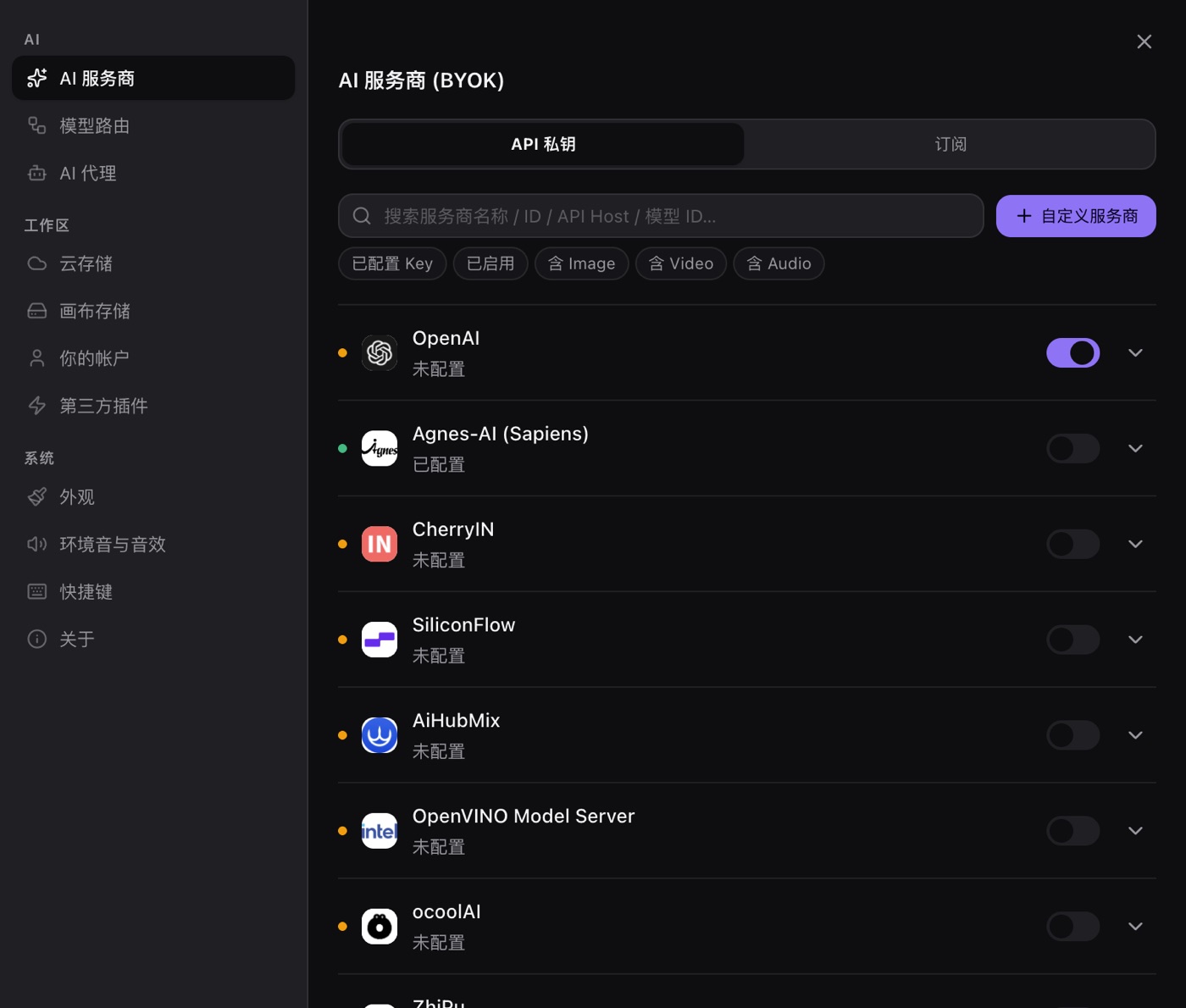
Paste your own key under Settings → AI providers. The key is encrypted into the OS keychain, read only when a request goes out, and never uploaded anywhere else. Settings → Model routing then assigns a provider and model per task, and the "Image → Image" row is the one that drives reference redraws. A node can also pick a model on its own, and that per-node choice wins over the route. Check that the model on the node actually accepts reference images; some text-to-image only models reject one outright.
2 · Build the chain on the canvas
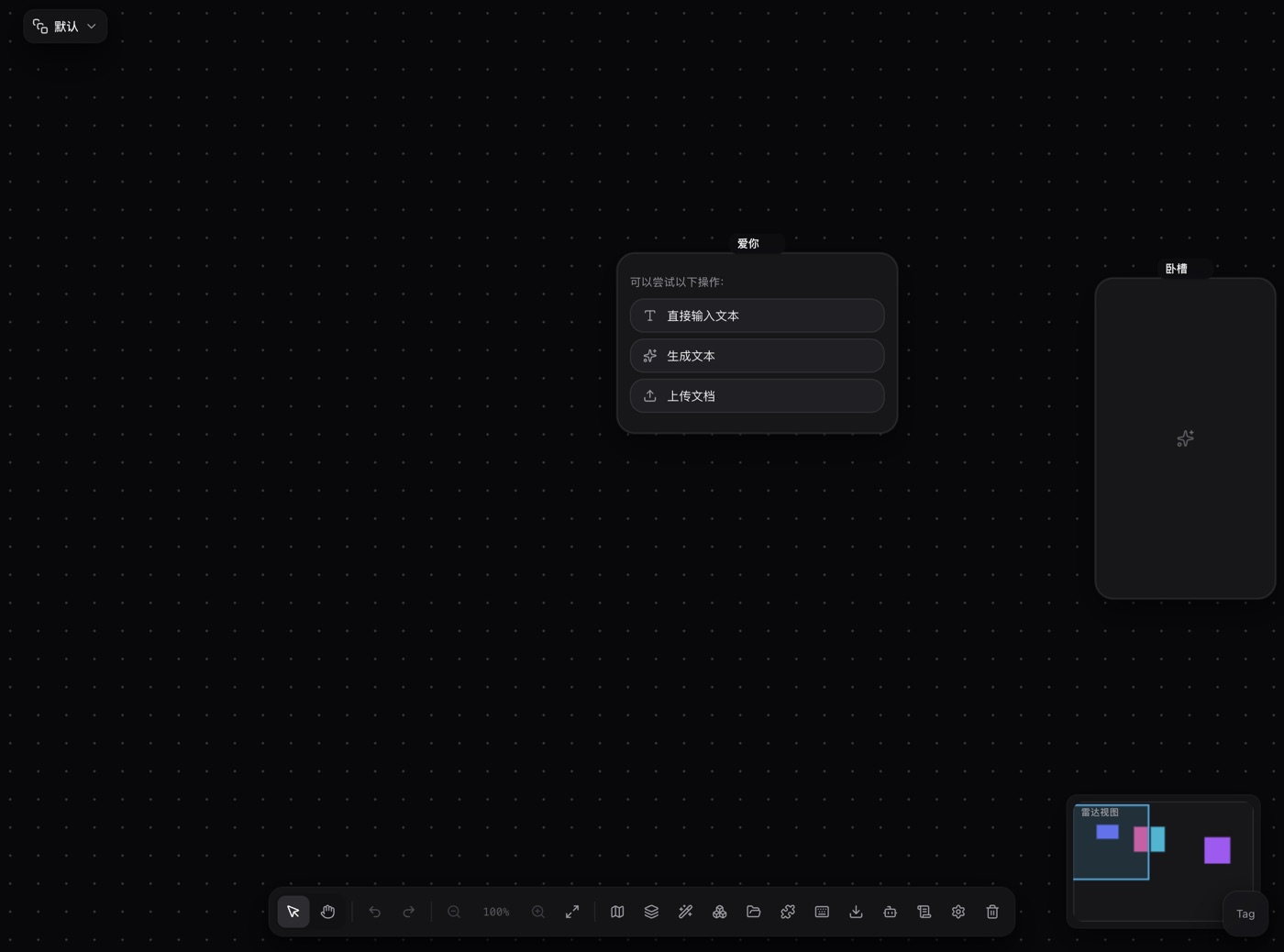
Nodes are the steps and the edges are the pipeline. For product photography the chain is short:
Upload node (the product shot) → image generation node (new scene or model) → publish node.
- An upload node that receives an image turns itself into an image node, so the product shot stays put on that node and nothing overwrites it.
- Wiring the product shot into an image generation node makes the upstream image the reference for that generation, and the request flips from text-to-image to image-to-image. The reference thumbnails above the prompt carry their send position as Image1, Image2; click one to drop
@Image1at the caret and name the right picture in the prompt. - Branch several image nodes off the one product node. One product node feeding five image nodes gives five backgrounds. The original stays the read-only start of the chain, so no generation can overwrite it. That is exactly why one source can produce five variants: a bad one is fixed by deleting the downstream node, and the five results sit side by side on the same canvas.
3 · Keep a set visually consistent
The cheapest method is to reuse one set of description words across every variant: light direction (soft light from the left), white balance (warm), angle (45-degree overhead), depth of field (slightly blurred background). Repeat them word for word.
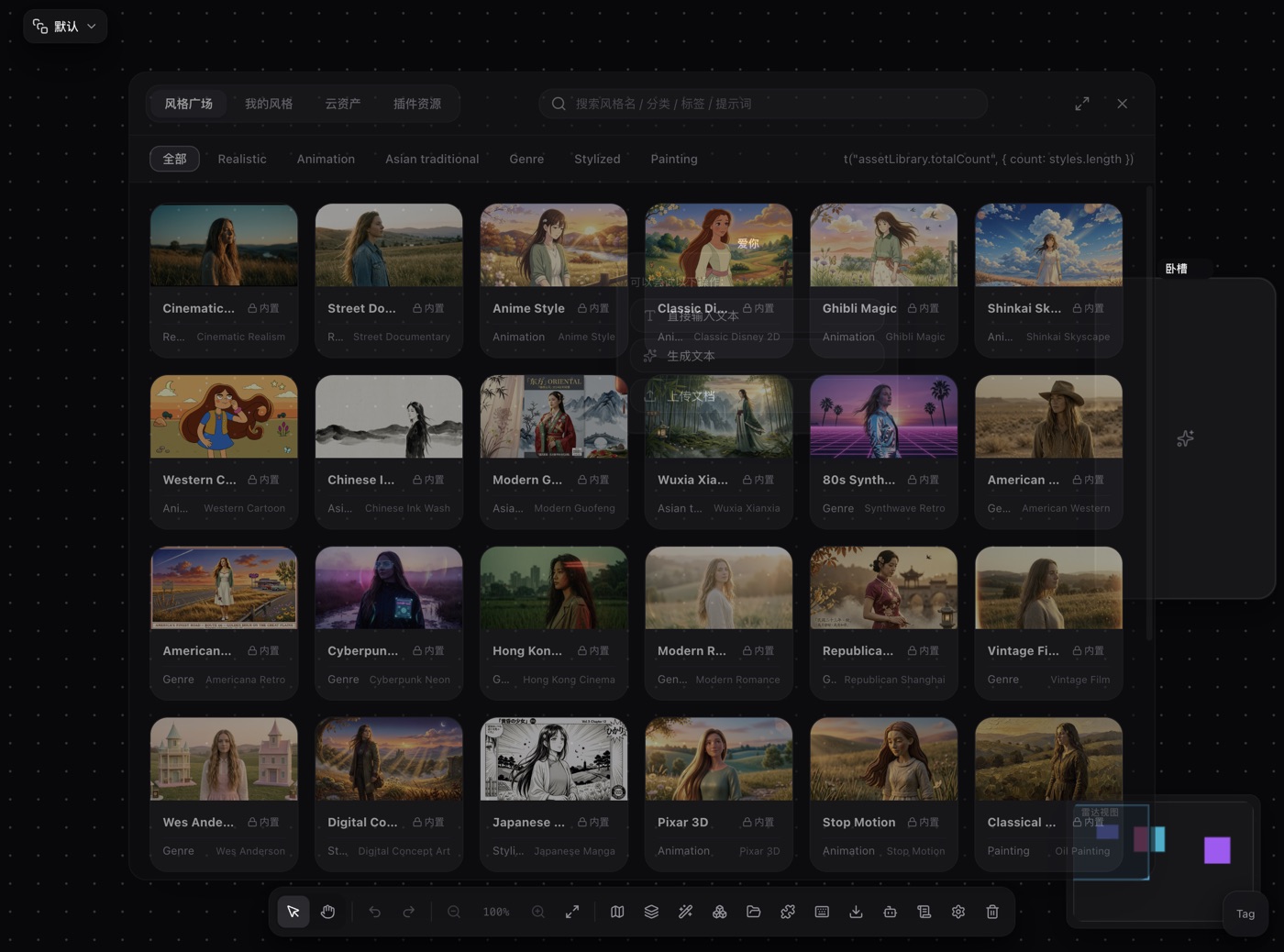
The steadier layer is Save as Style. Save a result you like as a style, wire the style node into the generation node, and the style prompt folds into the prompt before the request goes out. Saved styles live in My Styles in the asset library and can be reused or dragged onto the canvas.
4 · Publish and export
A publish node at the end of the chain ships the results to a platform by account tag, covering channels like Douyin, Bilibili and Rednote. The toolbar export gives you a canvas snapshot (JSON / SVG / PNG), not that product photo itself; the generated file lands in the assets folder of the app data directory. To put the original on disk, configure object storage first, push the generated assets into the bucket from the Cloud assets tab, then download them.
5 · Platform notes
Follow the platform's own policy page. This article deliberately does not repeat any numbers. Etsy's image specifications live in the help center article "Requirements and Best Practices for Images in Your Etsy Shop" and in the House Rules on listing image requirements. Amazon has its own Product image guide, covering the pure white background expected of main images. Those rules change, so check the current version.
What matters more is the relationship between the image and the item. A generated shot that changes the color, the structure, or inflates a feature can be judged misleading and trigger a takedown, a return request, or account action. Etsy has separate rules on creativity standards and AI work, and Amazon requires disclosure metadata for photorealistic AI people appearing in images. The safe arrangement: keep the real photographed white-background shot as the main image, put the AI lifestyle scenes in secondary positions, and let real photographs carry the product detail.
FAQ
Is there a one-click background swap in the app?
No. Background removal, masking and background replacement are provider-model capabilities reached through the image-to-image chain.
The node says the model only supports text-to-image. Why?
Some models are text-to-image only and reject a reference outright. Pick one that supports image-to-image.
Does a model shot give me accurate sizing?
No. Image-to-image gives a visual approximation. It is enough for a main image; the flat-lay and the size chart are what carry the fit.
Where do the generated files end up?
In the assets folder of the app data directory. The toolbar export is a canvas snapshot. With object storage configured, push the generated assets into the bucket from the Cloud assets tab and download them from there.
Do any of this cost money?
A real shoot and a 3D render are quoted prices. Model calls are billed by the provider through your own key, and PolyCreator adds no inference fee.
Read next
- Getting started: install the desktop app and learn the canvas in ten minutes
- Models and providers: BYOK, routing, quota and billing in full
- Installing and managing plugins: marketplace, URL installs, updates