From 1024px to A3: how to upscale AI image for print quality
From 1024px to A3: how to upscale AI image for print quality
Long-tail queries: how to upscale AI image for print quality · AI image low resolution fix
A 1024×1024 generation looks perfectly sharp on screen and comes back rejected by the print shop. Print does not care about how good it looks; it cares about pixels. Search "how to upscale AI image for print quality" or "AI image low resolution fix" and every answer lands on the same two steps: work out how many pixels the finished size needs, then pick a way to get there.
1 · The problem: the image is not bad, the pixel count is wrong
A screen has no fixed physical size, so 1024×1024 fills a phone and still only covers 3.4 inches on paper. Print conversion is a hard rule:
pixels = inches × DPI
- 300 DPI is the print standard: sharp even when you hold the sheet at reading distance.
- 150 DPI is only acceptable for large-format work viewed from a distance, such as a banner on a wall.
Put that same 1024×1024 file on an A3 sheet (11.69 × 16.54 inches) and the long edge needs 4961 pixels, the short edge 3508. That is 4.8× on the long edge and roughly 17× the area. None of the added pixels can be real detail: they are either interpolation blur, or texture a model invented. T-shirt prints, foam-board signage and roll-up banners work the same way. The bigger the finished piece, the more pixels it needs, and most AI image models stop at 1024 or 2048.
Two concepts get mixed up constantly. DPI belongs to the print side: a Retina screen does not make a file print-ready. And AI output is RGB while print is usually CMYK, which is the print shop's conversion to make. Your job is to hand over an RGB source file that is large and clean enough, not a CMYK file you converted yourself.
2 · Print size reference table
Each row is pixels = inches × DPI (inches = mm ÷ 25.4). The multiplier column is the short edge against a 1024×1024 base.
| Finished size | Physical size | Pixels needed at 300 DPI | Pixels needed at 150 DPI | Multiplier from 1024px |
|---|---|---|---|---|
| A5 card / flyer | 148 × 210 mm (5.83 × 8.27 in) | 1748 × 2480 | 874 × 1240 | 1.71× short edge |
| A4 poster | 210 × 297 mm (8.27 × 11.69 in) | 2480 × 3508 | 1240 × 1754 | 2.42× short edge |
| A3 poster | 297 × 420 mm (11.69 × 16.54 in) | 3508 × 4961 | 1754 × 2480 | 3.43× short edge |
| Instagram square (1:1) | 4 × 4 in (native 1080×1080) | 1200 × 1200 | 600 × 600 | 1.17× |
| T-shirt chest print | 10 × 12 in | 3000 × 3600 | 1500 × 1800 | 2.93× short edge |
| 40 × 60 cm roll-up banner | 15.75 × 23.62 in | 4724 × 7087 | 2362 × 3543 | 4.61× short edge |
Three things fall straight out of the table:
Here is one calculation end to end. The A3 poster's short edge is 297 mm = 297 ÷ 25.4 = 11.69 inches; at 300 DPI that is 3508 pixels. From a 1024 base, 3508 ÷ 1024 = 3.43×. For the whole sheet the area factor is (3508 × 4961) ÷ (1024 × 1024) ≈ 16.6×. Put the numbers next to the sentence "just upscale it a bit and print A3" and that sentence stops holding up.
- A 4× upscale gives you 4096×4096, which covers A4 at 300 DPI (2480 × 3508). It does not cover A3 at 300 DPI (3508 × 4961): the long edge still needs 4961 ÷ 1024 ≈ 4.8×, and A3 is portrait, so a square master also has to be extended first.
- A 2× upscale gives you 2048×2048, which covers A4 at 150 DPI (1240 × 1754) and every social size you are likely to hit.
- The native 1080×1080 social image is already under the 300 DPI bar at 4 × 4 inches, which needs 1200. "Take the social post straight to print" was always a hair short.
3 · General solutions: the upscaling toolchain
There are four routes.
- Classic resampling (lanczos, bicubic): the default in every image library. It rearranges pixels and adds nothing. Fine up to about 2×; guaranteed to look soft at 4×.
- Dedicated upscalers (the Real-ESRGAN family, desktop tools like Topaz, cloud services like Magnific): a trained network that hallucinates plausible high-frequency detail. Sharp edges, believable texture, and the most common choice for print work.
- Tiled diffusion upscaling: slice the image into tiles, run a diffusion model over each one, stitch the tiles back together. The richest detail of the lot, and the slowest and priciest, because it also alters the picture.
- Re-generating at a higher native resolution: not an upscale at all, a re-render. Same prompt, higher resolution tier. The detail is real, but the composition shifts.
| Route | Output quality | Cost | What you need |
|---|---|---|---|
| Resampling (lanczos / bicubic) | Magnifies without adding detail; usable to about 2× | Effectively free | An image library or a design tool |
| Dedicated upscaler (Real-ESRGAN / Topaz / Magnific class) | Sharp edges, believable texture; the print standard | Per-image billing or a one-off licence | Desktop software or a cloud account; the image leaves your machine |
| Tiled diffusion upscaling | Richest detail, but it changes the picture | Highest: GPU time by step | A GPU, diffusion weights, patience |
| Re-generate at higher native resolution | Real detail, different composition | One image generation | A model and quota that output large sizes |
One thing worth stating plainly: most of these run outside PolyCreator. Topaz, Real-ESRGAN and diffusion upscaling are separate software or cloud services. The next section is about wiring them into a workflow.
How to choose:
- The finished piece is A5 or A4 sized and your model already outputs 2K or more. Generate at that size and skip upscaling.
- The art is signed off and the target is A4 at 300 DPI or smaller. An upscaler at 2× to 4× is enough.
- You need A3 at 300 DPI, or the picture is dense with texture. Start at 4× and inspect every result, because the model will have rewritten detail it did not like.
- Words, logos and packaging labels are the subject. Upscalers will not help; generate at the target resolution and re-typeset the text in a design tool.
- Many small images on one repeated layout. Plain resampling is enough.
4 · How PolyCreator does it
Let us be exact about this: PolyCreator has no built-in upscaler. There is no "one-click 4× upscale" button anywhere in the interface. What the app does is route work and host the pipeline: it hands the job to a model or a plugin you chose, and then keeps the chain flowing.
1 · Route the image task to a model that outputs higher natively
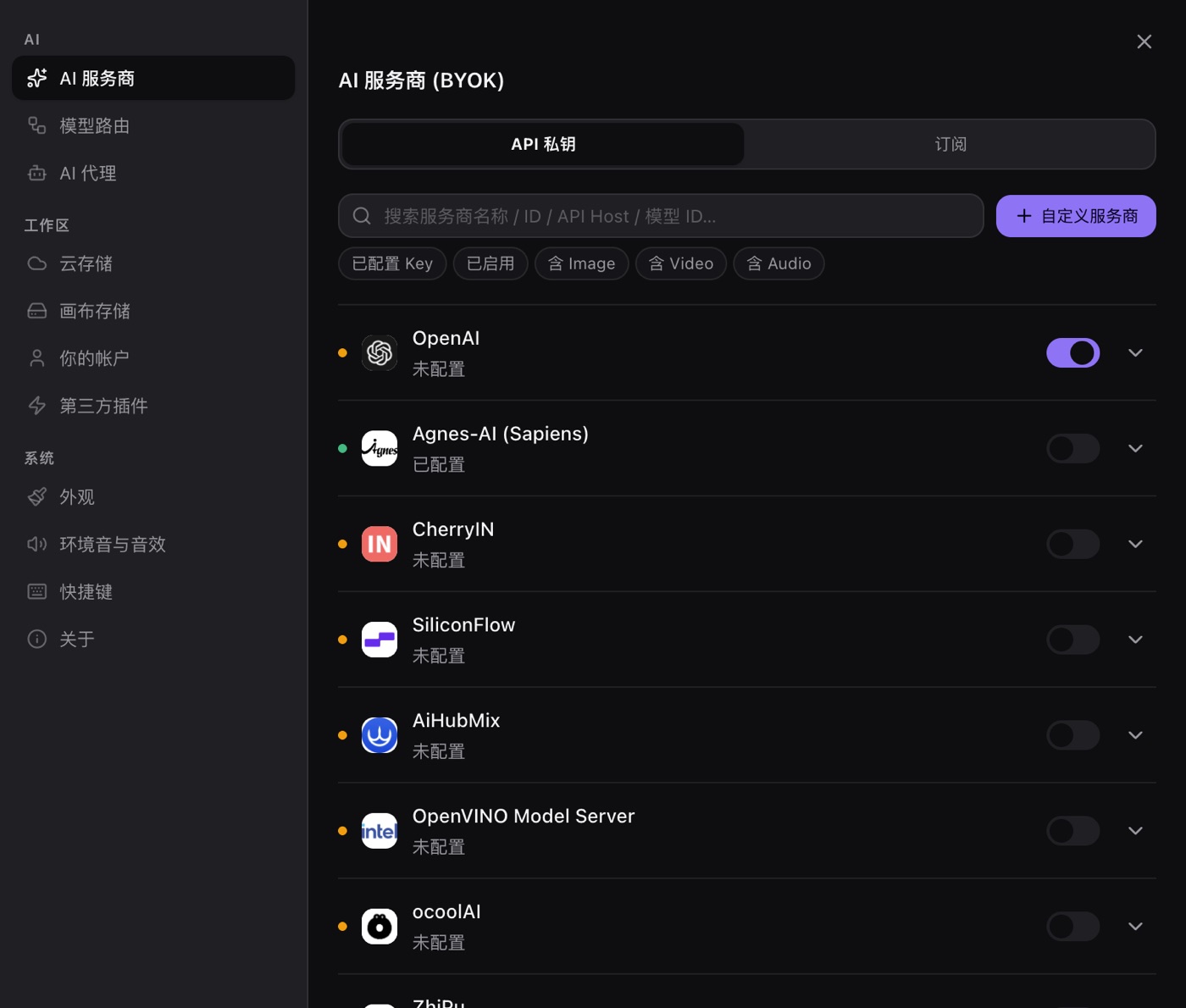
Model routing assigns a provider and a model per task, and you can also pick a model on the node itself. A model that natively produces 2K or 4K is far less work than forcing the issue at the upscale stage.
2 · Know the pixel size that actually leaves the app
The app turns your chosen aspect ratio and resolution tier into a pixel size in the request: 1024×1024 for 1:1 at the 1K tier, 2048×2048 at 2K, 4096×4096 at 4K. The ceiling is the model, though: every provider limits the size it will output, so a 4K tier on a model that tops out at 1024 still comes back at 1024. Check the model in the provider screen before deciding whether you need an upscale pass at all.
3 · Install a plugin that contributes an image-processing node
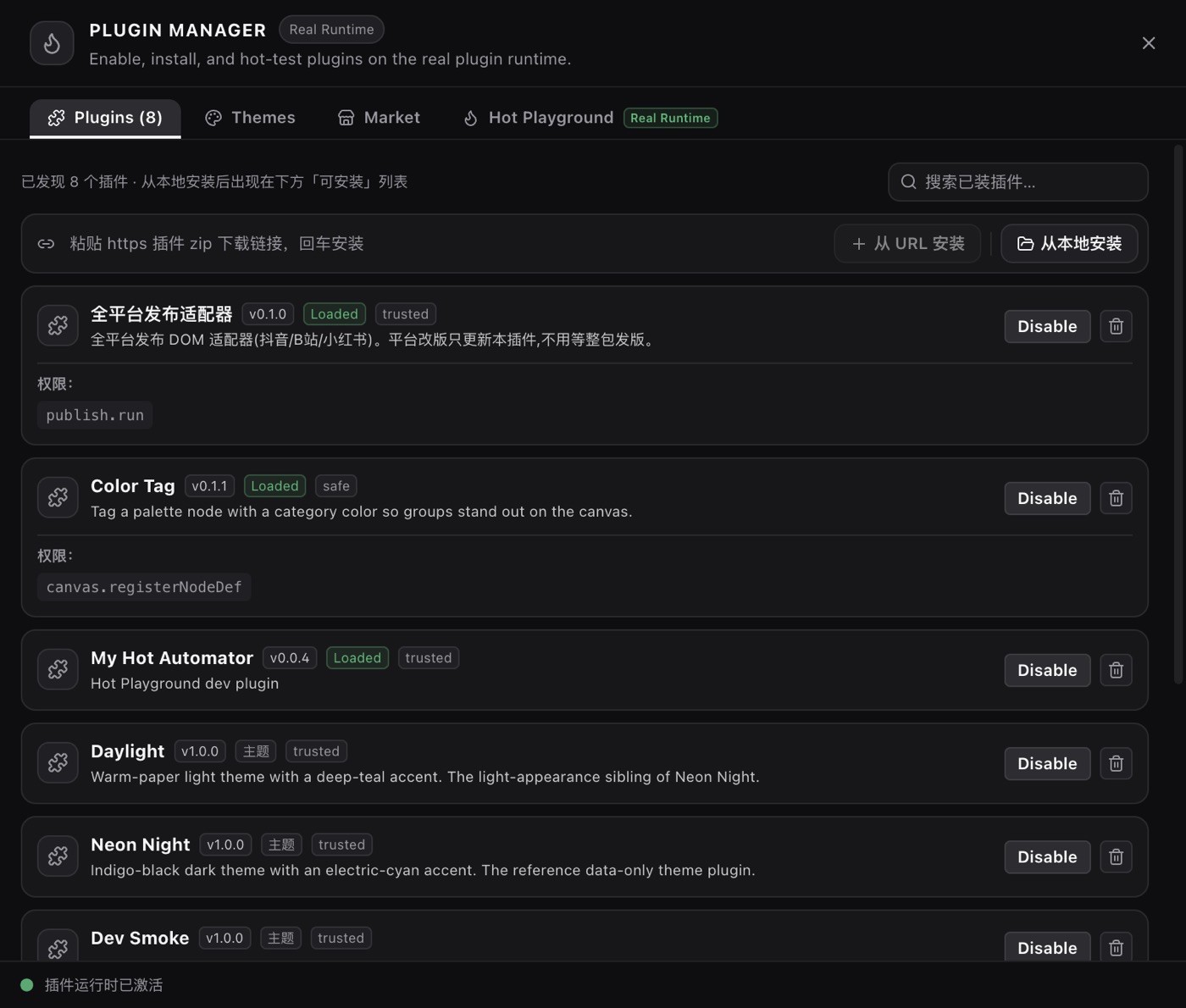
The plugin SDK is public. A plugin can contribute node types and settings tabs, and it can ship its own provider with its own authentication, so it does not occupy one of your key slots. Once it is installed, upscaling is just another processing node in the chain.
4 · The canvas flow
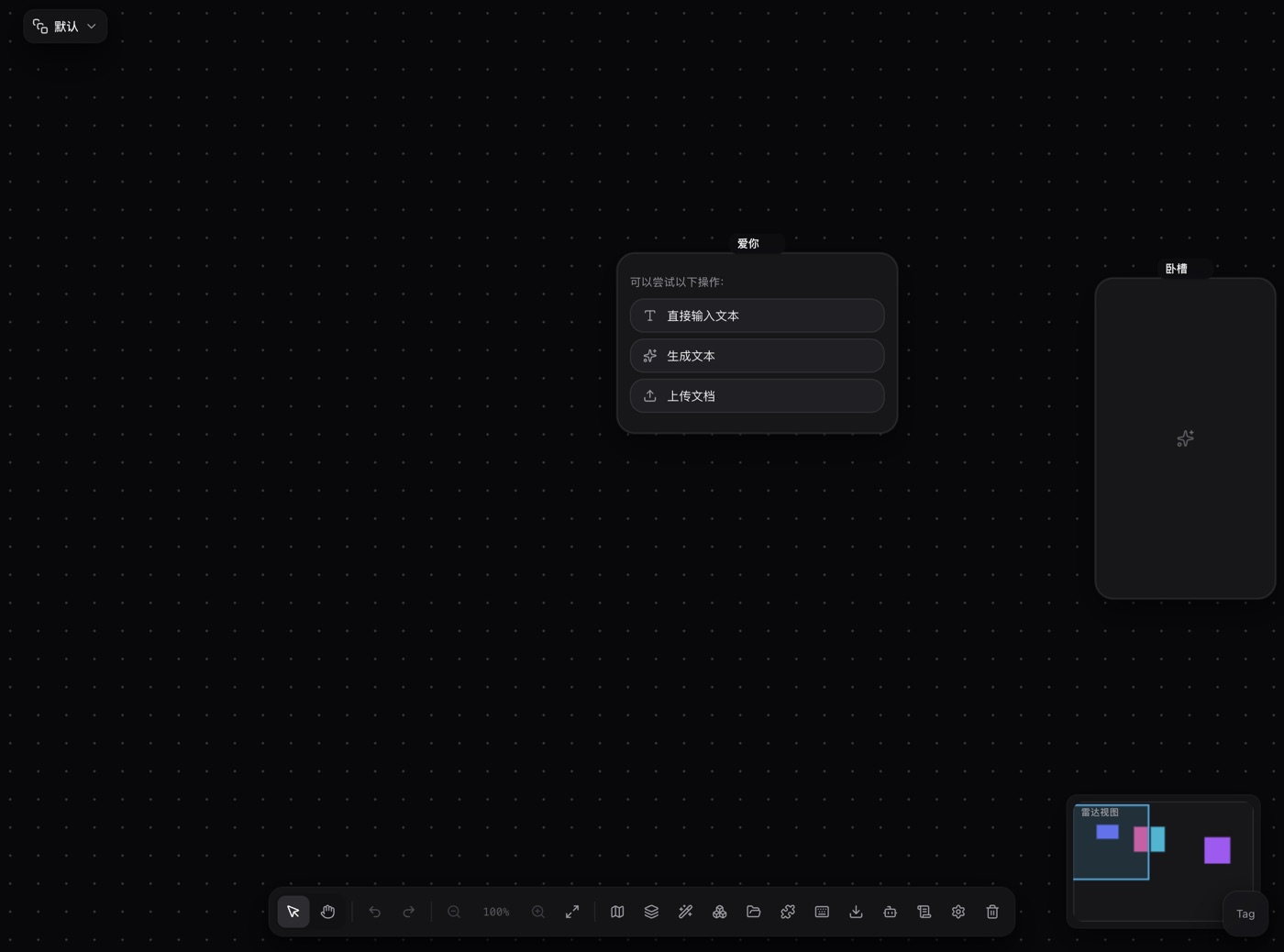
The connections are the data flow: image node → processing node → publish node. The image node's output feeds the plugin's processing node, and the processing node hands the enlarged image downstream.
Two things are worth spelling out. First, the processing node is a normal node, not a special mode: it takes the upstream image, runs whatever its plugin does with it, and writes the result back onto its own data, which is what the next node reads. Second, a plugin can also bring its own provider, so an upscaling service that is not in the app's provider list is still reachable from a node in the chain. Either way, the app does not know what upscaling is; it only knows that one node handed a file to another.
5 · Practical recipe: getting a print-ready file out of the app
- Fix the size first. Ask the print shop for the finished dimensions, look them up in the table above, and write down the two numbers you need: short edge and long edge.
- Configure a provider. Settings → AI providers, paste a key for a service you already pay for. Keys sit in the OS keychain, are read only when a request goes out, and are never uploaded anywhere else.
- Generate. Add an image node, pick the aspect ratio, set the resolution tier to 2K or 4K, and choose a model whose native output is large. The node's own resolution tier is a request, not a guarantee: the model decides what it can actually output.
- Install a plugin if you need more. Install an upscaling plugin, connect its processing node after the image node, and run it with the key you configured for that plugin. If the plugin needs the enlarged file to keep the same aspect ratio as the source, say so in its settings before you run it.
- Close the chain. The end of the chain can be a publish node (it accepts upstream images and publishes to your accounts on Douyin, Bilibili, Xiaohongshu and similar), or you can push the result into your cloud assets.
- Export the original. Generated files are stored as real files in the app's data directory (
userData/assets). The toolbar export produces a canvas snapshot (JSON / SVG / PNG), not that original image. To get the original onto your disk, use the asset library: configure cloud storage in settings, import the locally generated assets from the Cloud Assets tab up to your bucket, then use the library's download button to save the file. - Verify. Open the saved file, read the actual pixel dimensions from its properties, and compare them with the table. If it falls short, do not pay for the print run. All the print shop tells you on rejection is "resolution too low".
- Check the file, not just the numbers. Zoom to 100% on the lettering and on the edges. A file that hits the pixel target but has smeared edges is still a file the print shop will send back.
6 · FAQ
Can I take an existing 1024px image straight to A3?
You can, but know the price. 4.8× is a heavy upscale: the model invents texture, hair, brickwork, and other high-frequency detail. Lettering, logos and hands are where it falls apart. For anything important, generate at the resolution the table asks for and treat upscaling as a rescue job for art you have already signed off.
The text got mangled after upscaling. What now?
Upscalers do not read text; they repaint strokes and blur them. For words on a product shot or a label on packaging, re-typeset the copy over the enlarged image in a design tool.
Is there a one-click 4× upscale inside PolyCreator?
No. The app does not ship an upscaling algorithm. It routes, hosts the canvas and loads plugins; the upscaling itself comes from the model or the plugin you pick.
Who pays for the upscaling?
Your provider key. PolyCreator does not sell models and does not take a cut of inference cost. If the plugin calls an external service, that invoice is also yours.
Is there an upscale option for video?
No. The built-in video operations are trim, crop and fullscreen preview, and no vendor currently backs video upscaling. Image upscaling has to go through the model or plugin route described here.
Is it safe to install plugins?
Plugin code runs on your machine. Read the source and the permission declaration before installing, and decide after that whether it should get a key.
Read next
- Getting started: install, sign in, meet the canvas
- Models & providers: BYOK, model routing, quota and billing
- Installing & managing plugins: marketplace, URL installs, updates