comfyui workflow templates free download: where to find them, how to adapt one, how to save your own
comfyui workflow templates free download: where to find them, how to adapt one, how to save your own
Long-tail queries: comfyui workflow templates free download · AI image workflow share reusable · how to reuse image generation workflow
Search "comfyui workflow templates free download" and ComfyUI is usually already installed. The blocker is the next step: where does a workflow come from. Search "AI image workflow share reusable" and you want to hand someone else the chain that finally worked. Search "how to reuse image generation workflow" and you are simply tired of rebuilding the same five-node chain for the fourth time this month.
1 · The problem: you rebuilt the same chain four times
- Rebuilding is muscle memory. Type the prompt in a text node, generate an image, animate it, composite the pieces, publish. Every project starts from an empty canvas: rewire the edges, re-pick the aspect ratio.
- The lessons do not survive. You learned that one model stretches faces at 16:9 and behaves at 9:16. That note lives nowhere.
- The good settings do not survive either. The prompt sits in an input box, the model sits in a pill on the node, and one duplicated canvas scatters both.
- It does not survive a question either. A colleague asks how you wired your short-drama flow. You say "a few nodes, connect them". They rebuild it from scratch.
- The cost is not the wiring. It is the decisions you already made. Which model handles the keyframe, which node composites the clips, where the audio lands. Rebuilding throws away the reasoning as well as the structure.
A chain that runs from prompt to publish is worth keeping. The problem is that every project retypes it. A template exists for exactly that reason: package the nodes and the edges into one reusable thing, so the next time is an insert rather than a rebuild.
2 · Where templates come from
| Source | Best for | Risk |
|---|---|---|
| Official and community template galleries | Seeing the shape of a proven chain quickly, without trial and error | The file may reference models, custom nodes and file paths your machine does not have; it errors on the first run |
| Pipelines you saved yourself | Reusing the same chain across your own projects | Only you know the preconditions; hand it to someone else and the context is missing |
| Hand-rebuilding (the baseline) | One-offs and shapes that differ every time | You start over every time and nothing accumulates |
Community galleries are where most people land first. The ComfyUI ecosystem turned "a workflow is a file" into a community habit: outside the official site, gallery pages, forum threads and GitHub repositories are full of JSON workflow bundles labelled "free download".
Be clear about what that is: a JSON file, listing node types, the edges between them, and the parameter values on each node. Drag it into ComfyUI and it runs only if that machine owns every thing it references: checkpoint weights, LoRAs, custom node packs, local file paths baked into the parameters. Miss one and a node turns red.
Read it before you run it. Open the JSON in a text editor and look at which models it names, which node types are not standard, which paths it hard-codes. That one minute is cheaper than debugging a red node.
If the point is to get the node-graph experience without installing ComfyUI at all, see ComfyUI is too hard? A zero-setup node canvas instead.
Your own saved pipelines are the highest quality of the three. They already ran, you know every precondition, and the parameters are the ones you tuned. The limitation is obvious: they only work for you.
Hand-rebuilding is the baseline. The structure fits this one job exactly, at the price of starting from zero every time.
One honest caveat belongs here: a template is only as good as the assumptions baked into it. Aspect ratio, model, resolution and prompt length are all frozen in the file. Run it without reading and you reproduce their framing, not yours. A template written for a 9:16 short video will keep trying to produce a vertical frame long after you moved on to a square product shot, and no amount of running it will change that.
3 · How to adapt a template: only touch the nodes holding your values
Read the structure first. Ignore the parameters for a minute and look at the edges: where the data comes from, where it goes, how many stages there are, which nodes run in parallel. Structure is safe to copy. Parameters are not.
Then find the nodes that belong to the original author. The prompt node carries their description, the model pill carries their model, and the ratio, resolution and duration are theirs.
Then change only those. Rewiring edges, adding nodes or reordering the flow means you rebuilt the thing, and slower than rebuilding it from scratch would be. Changing parameters is what reuse means.
| Nodes you usually change | Parts you can copy as they are |
|---|---|
| Prompt and script nodes with their baked-in descriptions | The edge structure: who feeds whom, how many stages |
| The model pill on the node (it wins over the routing rule) | Batch settings: one run producing 1, 2, 4, 6 or 9 images |
| Aspect ratio: 9:16, 1:1, 16:9 and friends | The composite node that stitches several clips into one |
| Resolution: 1K/2K/4K for images, 480P/720P/1080P for video | The publish node that comes after the final cut |
| Duration: seconds for video, 5/10/15/30/60 for audio | How the asset library node and the groups are laid out |
Run the smallest version first. Replace the prompt with the plainest sentence you can, produce one image, confirm the chain works, then swap your own parameters back one at a time. Change one variable per run, so when something breaks you know which one did it.
A worked example. A template comes in as script, then keyframe image, then video, then audio, then publish. You want square product stills instead of vertical video. Four things change and nothing else: the image node's aspect ratio, its resolution tier, the video node's duration (or removing it, if you only need stills), and the prompt text. The edges between the five nodes, the ordering, the composite step and the publish step stay exactly where they were. Ten minutes of edits, and the result is their pipeline with your numbers in it.
4 · How PolyCreator does it: save the canvas as your own template
PolyCreator is a desktop node canvas. Text, image, video, audio, script, composite and publish are nodes, and the connections between them are the flow. Here a template is called a macro template, and the toolbar button that opens it is titled "Macro templates".
Open the library and start with the built-ins
Click the macro template button in the toolbar and the panel lists every template. Four built-in templates ship with the app, each card carrying a "built-in" badge: the AI short video full pipeline (script, image, video, dual-track audio), cyberpunk concept art design, multi-voice audiobook narration, and an agent decision and RAG reasoning pipeline. Each card draws a flow preview, an SVG miniature rendered from the template's real nodes and edges, and shows the node count and edge count in the corner.
The built-ins are worth studying rather than just running. They are complete chains, not single nodes, which makes them the clearest examples of what a template is supposed to capture: a script node feeding an image node feeding a video node, with the audio and publish stages hanging off the side.
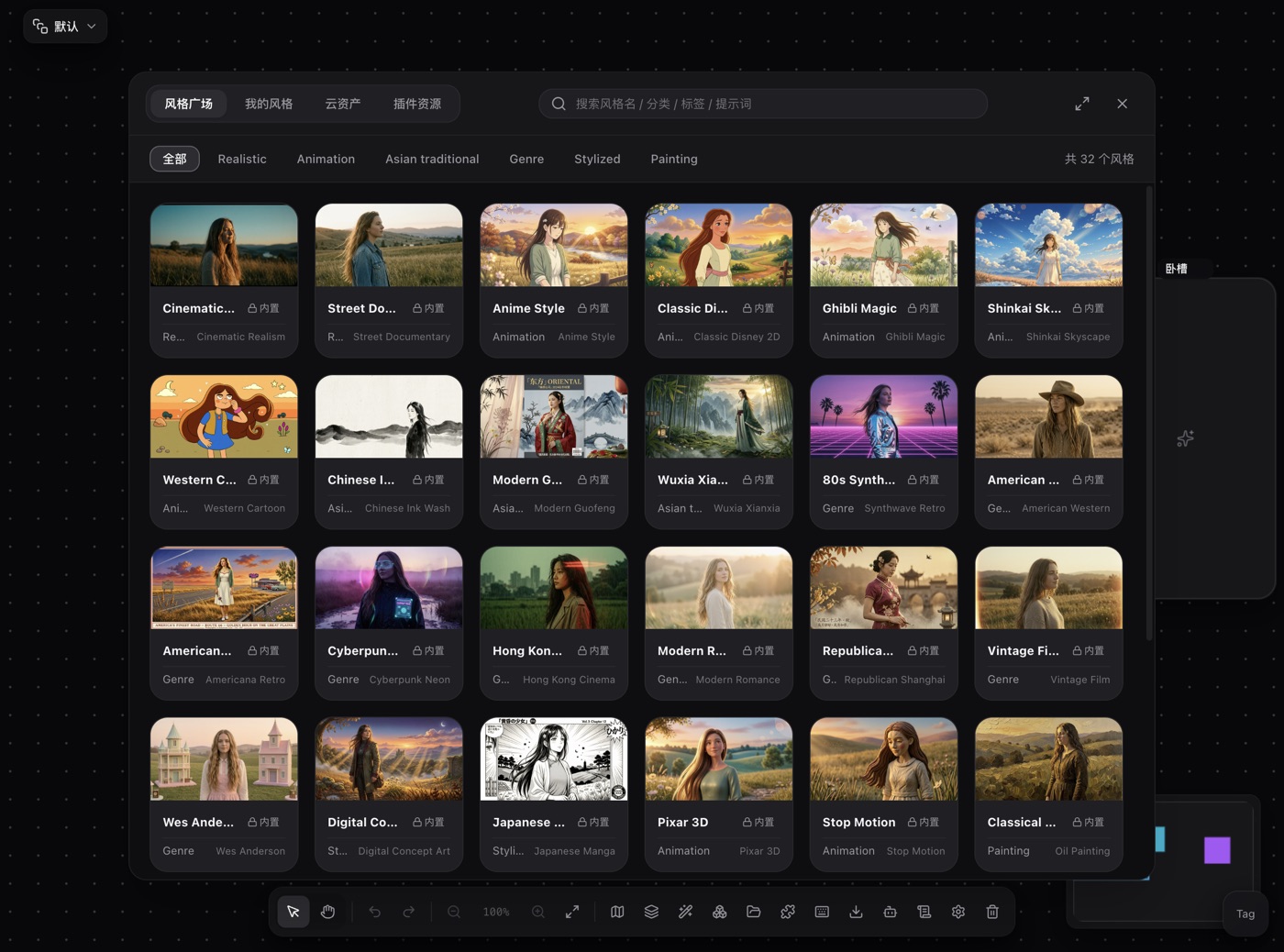
That totals line at the bottom tells you what the library currently holds.
Save your own
- Box-select the nodes you want to package on the canvas. The edges between them come along.
- Click "Save as macro" on the node overlay, or "Save selection (N) as macro" in the library panel.
- Fill in four fields: the macro name (required), the workflow category, the description and purpose, and tags (comma-separated).
- When it saves, it appears under the Custom category.
The coordinates are relative. A template records each node's position relative to the selection's bounding box, not absolute canvas coordinates. So the same template lands intact on any canvas, at any spot.
Save a group instead. The floating bar above a group carries a "Save macro" button: select a group, hit it, and the group plus every descendant go in together. The group's label, background color and size travel with it, and the wrapper is rebuilt on insert.
The saving form shows you what you are about to package: a preview listing the included nodes and the topology between them, so you can catch a stray node before it becomes part of the recipe.
Insert, search, delete
- Insert onto canvas: the template becomes real nodes and real edges, placed at the center of the current viewport, with the new nodes selected. The whole batch counts as one undo step, so one Ctrl+Z removes it all.
- Search: the search field matches on name, description and tags.
- Category filter: the tabs read All, AI Short Video, Storytelling, Audio & Voice, Agent Workflows, Custom.
- Export / import JSON: export writes a
<name>_macro_template.jsonfile; import reads a local JSON file back into the library. - Delete: custom templates have a delete button. Built-ins do not.
5 · Sharing a template: the JSON is the sharing unit
There is no cloud template gallery, no link-sharing service, no version control and no ratings for macro templates. The unit of sharing is the exported JSON file.
Archiving, naming and layering the outputs themselves is a separate job, covered in How to organize AI generated images prompts, and reuse the workflow.
Once exported it is an ordinary file: the extension is right and any editor can open it. Send it however you like, as a mail attachment, over IM, through a file share, into a Git repository, or into a shared team folder. The recipient opens the macro library, clicks "Import JSON", picks the file, and the template lands in their Custom category.
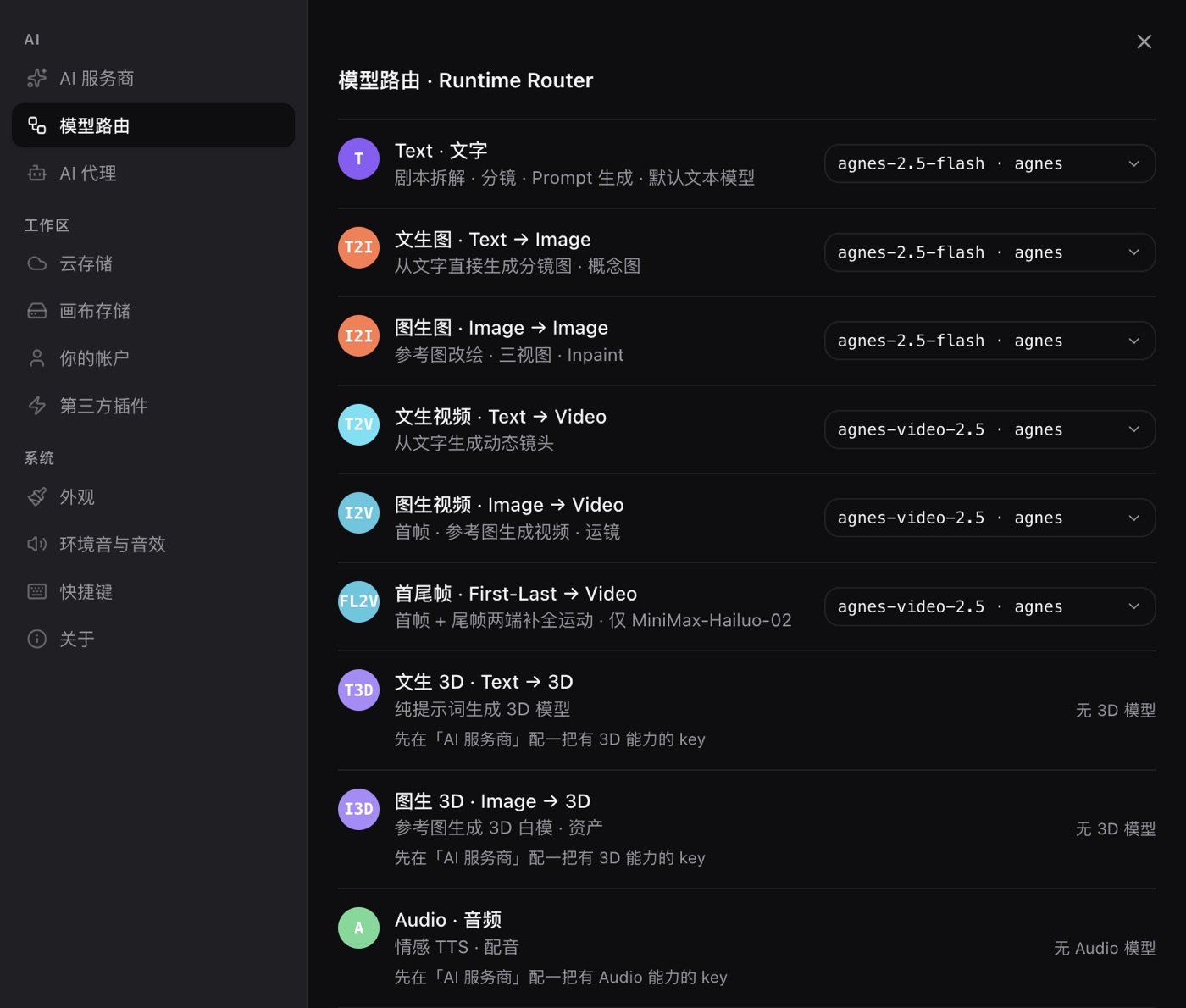
The model can be changed in two places: the model pill on a node, which wins over the routing rule, and the defaults in Settings, Model routing. A shared template carries the original author's model choice, so the first thing the recipient does when they lack access is swap it.
Two habits make the JSON sharing unit work. First, name the file meaningfully before sending it: the exported name follows the template name, and a folder of macro_template.json files tells you nothing. Second, write the preconditions into the template description when you save it, not in a separate message: which models it expects, whether the ratio is hard-coded. The description travels inside the JSON; the message does not.
6 · FAQ
What is the difference between a template and "Save as style"?
A style stores the prompt and a cover image. A template stores nodes and edges. A style is a prompt fragment; a template is a flow structure.
The model in my template stopped working. Now what?
A template stores a model name, not a model file. If the provider retires it or your key lacks access, switch the model on the pill. The structure stays put.
Can built-in templates be edited?
Built-in templates cannot be edited or deleted. You can insert one, edit it on the canvas, then save the result as your own custom template.
Does the exported JSON carry my keys?
No. A template holds node parameters and edges. Keys live in the system keychain and never enter a template.
My templates disappeared after I reinstalled the app. Where did they go?
Custom macro templates are stored on the local machine, not in an account. A reinstall or a cleared profile wipes them, which is exactly why exporting the JSON after each template you care about is worth the two clicks. The imported copy behaves like any other custom template.
Can two people edit the same template and merge the changes?
No. There is no version control and no merge step. Each person imports their own copy and edits it; if the two versions diverge, compare the JSON files as text and keep the one you want.
Read next
- How to organize AI generated images and prompts: naming and archiving what you produce
- ComfyUI is too hard? A zero-setup node canvas instead: the other route, when you do not want a local install
- Getting started: install the desktop app and learn the canvas
- Models and providers: set up keys and model routing
- Installing and managing plugins: add new node types to the canvas
What to do next
You have read it; the canvas is now on your desktop.
- Download the PolyCreator desktop app: macOS, Windows and Linux — installed and running with your own API key.
- Browse the plugin marketplace: add node types, reach more model providers, or find a theme that fits.