How to edit part of AI image without regenerating: inpaint and outpaint
How to edit part of AI image without regenerating: inpaint and outpaint
Long-tail queries: how to edit part of AI image without regenerating · AI image extender change aspect ratio
Search "how to edit part of AI image without regenerating" and the answer is almost always the same: generate it again. Search "AI image extender change aspect ratio" and you land on online extenders that make you sign up, wait in a queue, download a watermarked file, and stitch the result back into your own toolchain.
Both paths ignore the actual situation. Usually one small part of the picture is wrong, and regenerating trades nine good parts for that one bad part. This guide covers the pain point, the standard techniques, and what PolyCreator actually does with them.
1 · The problem: regenerating is the expensive fix
Real situations look like this:
- The lighting, composition, and mood of a portrait are all right. The hand at the bottom of the frame has six fingers.
- The concept art is 1:1, but it has to sit in a 16:9 landscape video with nothing on either side.
- The asset is a summer scene and the client wants a winter version.
What all three share is a false premise: that "change one thing" means "make a new picture". Regeneration has a real price. The composition shifts, the lighting shifts, the face shifts. A different seed can shift the style too. You wait again, you pay the provider again, and the previous version is gone, so there is no way back.
There is a second misconception worth naming: that this is a Photoshop or specialist-editor problem. Most people are not after pixel surgery. They want to change a little, and they want to be able to undo it.
2 · The general answer: inpaint and outpaint
Two operations cover almost all of it, plus one fallback people reach for too often.
Inpainting means masking out a region, writing a new prompt for that region, and letting the model repaint only that area while the surrounding pixels stay put. Good for hands, faces, text, and product detail.
Outpainting means growing the canvas and generating new content around the edges. Good for changing aspect ratio and for padding a frame for video.
Instruction-based image-to-image means passing the whole picture as a reference with a modification instruction and letting the model work out what to change. No mask required, but the blast radius is the hardest to control.
| Operation | Fits | Key parameters | Common traps |
|---|---|---|---|
| Inpainting | Only one small region is wrong: fingers, face, text, product detail | Mask extent, denoise strength, repaint prompt | Mask too small and the fix is invisible; too large and the surrounding lighting drifts. Denoise at maximum is repainting the region from scratch |
| Outpainting | 1:1 to 16:9, portrait to landscape, padding a frame for video | Extension direction, target aspect ratio, edge continuity | Visible collage seams, subject pushed to the edge. Asking for too much ratio change in one pass breaks the image |
| Instruction-based image-to-image | Swapping the background, changing the season, whole-image tweaks | Reference image, modification instruction, target ratio | A vague instruction changes the subject too. Reference-image limits vary by model |
| Full regeneration | The original is essentially discarded and you want a new composition | Seed, sampling steps, negative prompt | Everything you liked is thrown away. Doubles the wait and the cost |
The "key parameters" column belongs to the provider's side of the fence. Mask, denoise, and extension direction are mostly set in the provider's own editor or API. The canvas does not expose those controls.
Two of them are worth understanding even if you never touch the controls directly, because they explain most of the failure you will see.
Mask extent decides what is allowed to change. A mask that stops at the wrist means the forearm, the sleeve, and the background behind the wrist all stay locked, and the model has to invent fingers that connect to a wrist it cannot see. A mask that runs up to the elbow leaves the model room and costs you more of the picture than you wanted to give it.
Denoise strength decides how much the model ignores the pixels underneath the mask. Near zero the region barely changes. Near one it is generated from scratch, so the lighting and the shadow direction inside the mask may not match the pixels right next to it. "As small as possible" beats "as strong as possible" for both.
3 · How PolyCreator does it
First the boundary, because it matters here: PolyCreator has no built-in mask brush and no bundled image editor model. It is the desktop canvas and workflow layer. Image-to-image runs on the provider you configured. What the canvas gives you is the chain from source image to edit instruction to result, without destroying the original.
1 · Configure the provider and the route
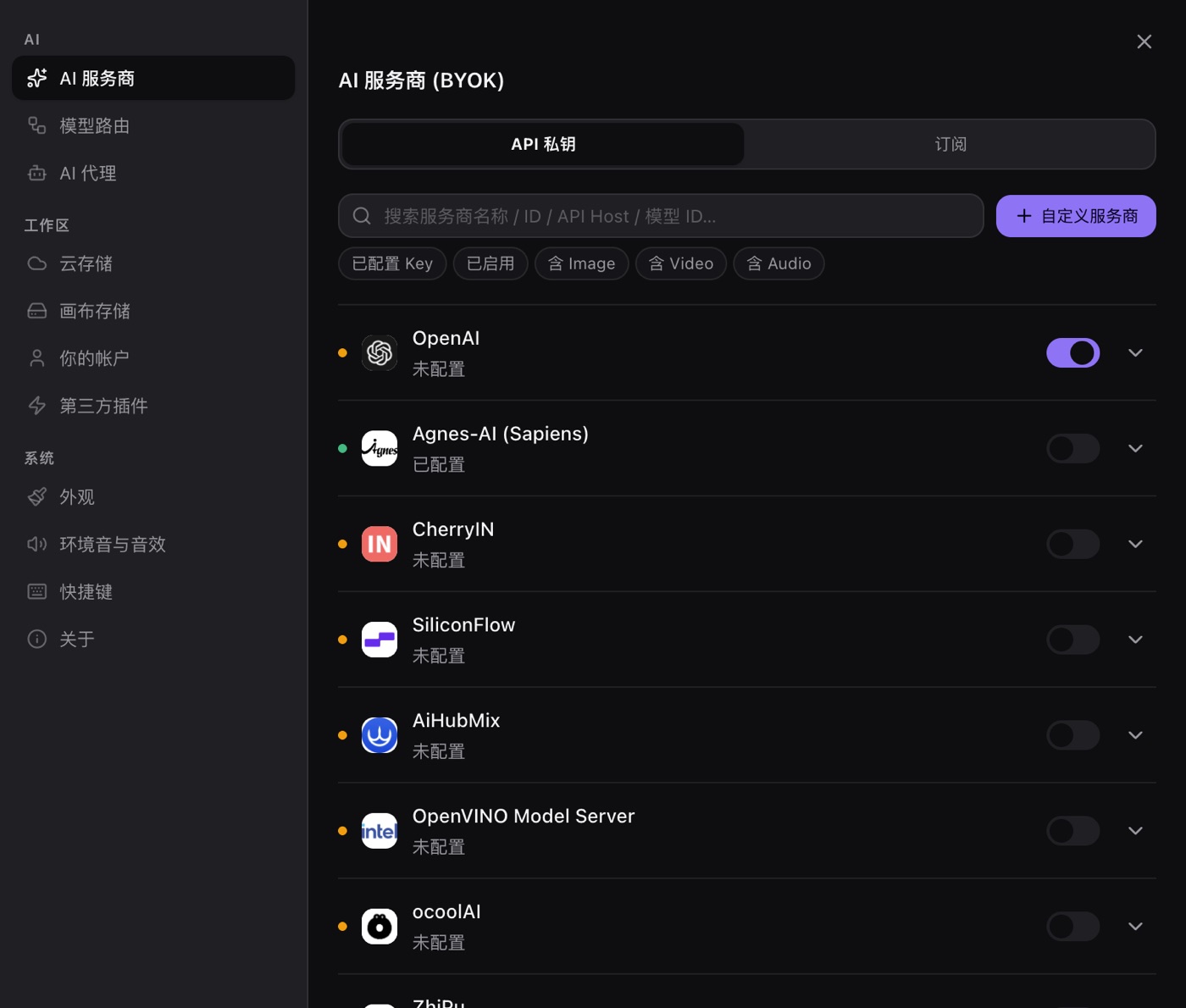
Open Settings → AI providers and paste your own key. Keys live in the OS keychain (encrypted via safeStorage), are only read when a request goes out, and are never uploaded anywhere.
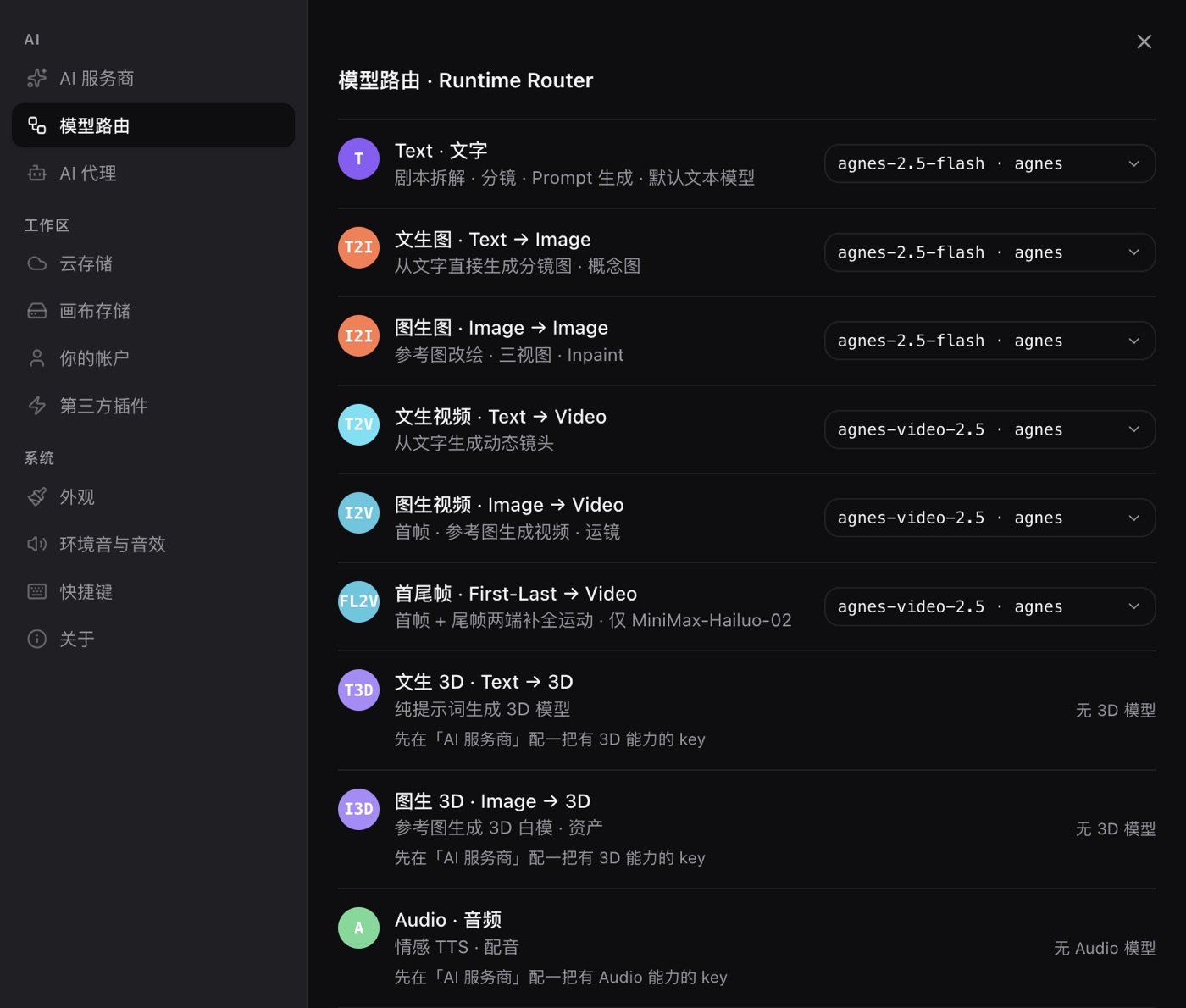
In Settings → Model routing, pick a provider and model for the image-to-image row. That is the row your local edits and your extensions run through.
2 · Bring the picture onto the canvas
Three ways: right-click empty canvas space to open the quick-add menu and pick Upload, which turns that node into an image node as soon as a single image lands on it; select an image node and use the Upload image button on its floating toolbar to swap a local file in; or start from an image generation node you already have a picture on.
3 · Build a non-destructive edit chain
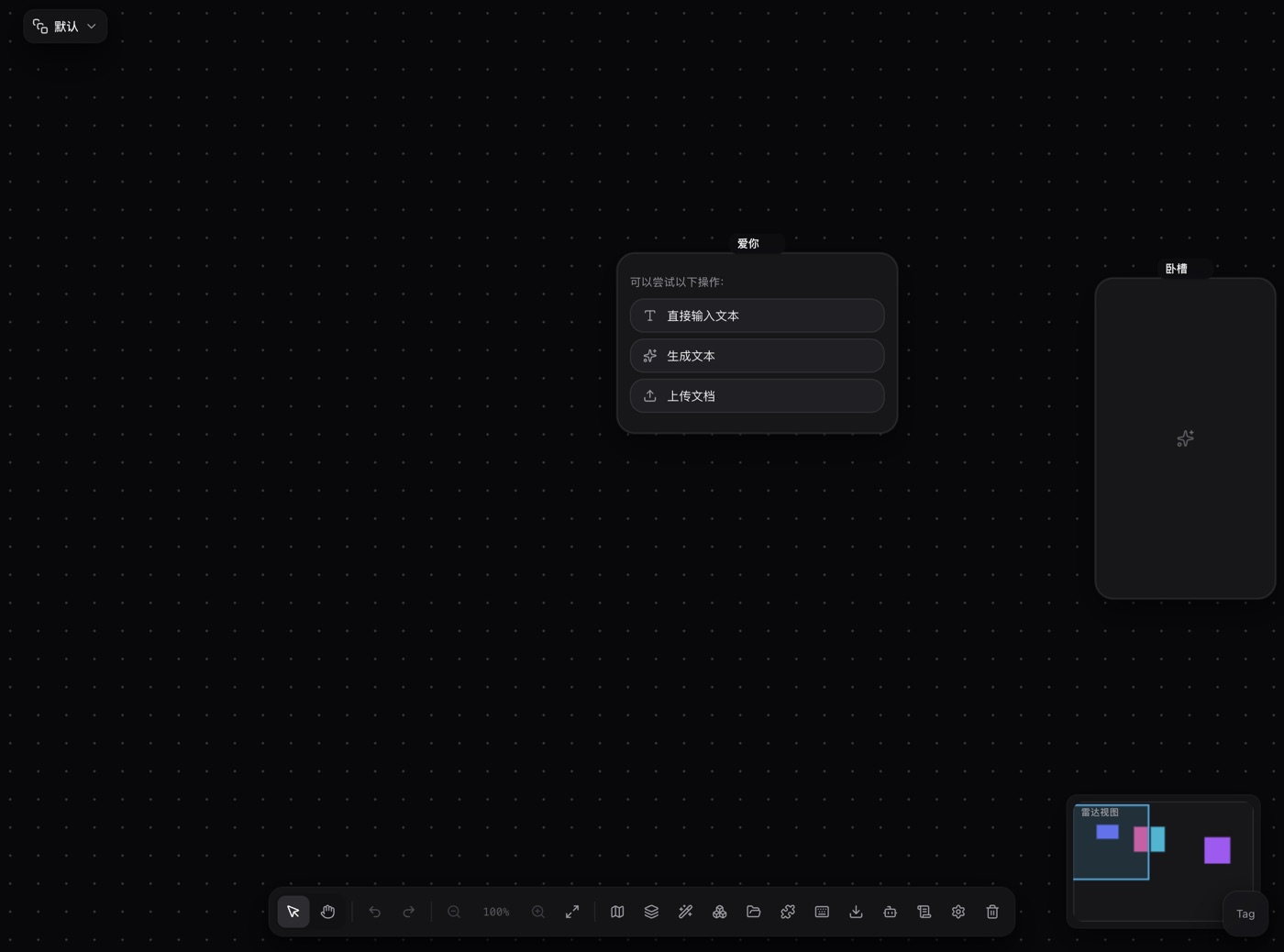
Add a new image generation node and connect it to the source picture. The upstream image automatically becomes a reference for that generation, so the request switches from text-to-image to image-to-image. On the canvas this chain is the workflow: source on the left, result on the right, prompt and model in the middle and editable at any time.
4 · Say exactly what changes
Name the region in the prompt and point at the reference with a mention (it looks like @Image 1). That beats a vague "make it better" by a wide margin. The reference thumbnails above the prompt carry a number badge; click one and the mention lands at your caret. Where you need a precise mask, do the masking in the provider's own editor and bring the masked result back to the canvas as the reference.
5 · Pick ratio, resolution, and model
- Ratio: keep the original ratio for a local fix; choose the target ratio directly for an extension (16:9 / 9:16 / 1:1 / 4:3 / 3:4 / 3:2 / 2:3).
- Resolution: the node stores 1K, 2K, or 4K, and the request size is the ratio's base size scaled by that tier (1K at 16:9 is 1280x720, 1K at 1:1 is 1024x1024). Go up a tier when an extension needs more width and clarity.
- Model: the model pill on the node overrides the route. Some models only do text-to-image (MiniMax image-01 is one), and they fail outright when a reference is attached. Models whose reference-image capacity is zero fail the same way.
The model choice matters more here than it does for a plain text-to-image run, because the two jobs are not equally demanding. A model that produces a striking picture from scratch may be poor at holding a composition fixed while changing one detail, and the reverse is also true. If you are fixing a hand on a picture you love, use a model you already trust with image-to-image, and change one variable at a time.
6 · Send, and the result lands in the node
The result lands in the image node you sent from. The source node is never overwritten. If you do not like it, edit the prompt and send again from the same node, or connect another node downstream and keep editing. The original stays at the head of the chain.
7 · Export
Results land in the local asset library, and the generation records panel keeps every run so you can compare rounds. With object storage configured, cloud assets can be downloaded as the original file. The canvas itself exports JSON, SVG, and PNG.
Why the canvas is worth using
The same "change one thing" job in a web editor is: upload, wait, download, notice it went wrong, upload again. On the canvas it is: connect a node, edit one line of prompt, get a result in a new place. The source node anchors the chain, so backing out means deleting what came after it.
Three things follow. The edit becomes reusable: once "source → edit node" is a shape on the canvas, you can save it as a macro template and run the same instruction on the next picture. Comparison becomes trivial: the original node and two differently prompted edit nodes sit side by side on one screen. The original is never in danger: it is a read-only input to the chain, so nothing downstream can overwrite it.
4 · Three worked cases
Case one: fixing a hand
- Symptom: the composition and lighting of a half-body portrait are good, but the hand has an extra finger or an awkward grip.
- Approach: connect the original into a new image node and instruct "keep the person, composition and lighting exactly the same, repaint only the hand at the bottom of the frame with five naturally spread fingers". Keep the original ratio. Use a model that supports image-to-image.
- Parameter notes: mask the hand area, not the whole arm. Do not push denoise to maximum or the forearm gets repainted too.
Case two: 1:1 to 16:9 for video
- Symptom: a 1:1 concept image leaves large empty bands in a landscape video.
- Approach: set the new node's ratio to 16:9, use the original as the reference, and instruct "keep the subject at the same size and position, extend the environment to the left and right to complete the frame".
- Parameter notes: do not ask for too much extension at once, and leave room around the subject for the environment to grow into. Go up a resolution tier so the new edges do not look soft.
Case three: changing the background season
- Symptom: a summer scene has to become winter.
- Approach: whole-image reference plus an instruction-based image-to-image run. Instruct "change the background to a snowy winter landscape, keep the person and the overall lighting unchanged".
- Parameter notes: this is the largest change of the three, and the most common failure is that the subject changes too. Writing "keep the person's appearance and pose unchanged" into the instruction noticeably reduces that.
FAQ
Does PolyCreator have a mask brush?
No. The canvas does not ship a mask tool. For precise region work, mask in the provider's own editor and upload the result, or use a whole-image reference with an explicit instruction and let the model locate the area.
Can I get back to the original after editing?
Yes. The source node is untouched, the result is a separate node, and deleting it leaves the original in place.
Why does the node fail with an error about text-to-image only?
The selected model does not support image-to-image. Pick another one. A model with a zero reference-image capacity fails the same way.
If I ruin one attempt, do I have to upload again?
No. Change the prompt on the canvas and send again. The next result lands as another node.
What does this cost?
The provider bills you, on your own key. The app charges no inference fee of its own.
Read next
- Getting started: ten minutes in
- Models and providers: BYOK, routing, quota and billing in full
- Installing and managing plugins: add node types and capabilities to the canvas