AI talking avatar lip sync bad fix: repairing the mouth and keeping one face across clips
AI talking avatar lip sync bad fix: repairing the mouth and keeping one face across clips
Long-tail queries: AI talking avatar lip sync bad fix · text to talking head video for course · AI video face consistency multiple clips
Search "AI talking avatar lip sync bad fix" and you land on people who already generated three or four versions of a talking head, then noticed the mouth sits half a beat behind the voice. Search "text to talking head video for course" and you find people trying to turn a lesson into narrated video. Search "AI video face consistency multiple clips" and you find people stuck because clip one and clip two are not the same person.
This guide has three parts. First, where the problem actually comes from. Second, the general toolchain and the repair order that actually works. Third, how PolyCreator assembles that chain into nodes.
1 · The problem: a late mouth, mismatched lip shapes, a different face
The complaints usually arrive in four forms:
- The mouth is half a beat late. The voice is already on the next sentence while the mouth is still holding the shape of the previous one.
- The lip shapes do not match the phonemes. An "s" should be a dental sound and the model gives you a rounded lip; a plosive lands on the cut, so the mouth never gets to close.
- The face changes between clips. Clip one has a long face, clip two is wider with a sharper chin and a different look in the eyes, and the cut is obvious.
- Recording eats the budget. A forty minute course took three hours to record and re-record, and you still redo it afterwards.
The root cause fits in one sentence: the mouth is a result of the audio, not of the picture. Whether the mouth moves correctly depends first on whether the audio you fed it is clean and whether the sentences are cut well. Whether the face looks like the same person depends first on whether the reference image and the model stayed the same.
2 · General solutions: four routes, each owning one segment
| Route | Input | Control | Suits |
|---|---|---|---|
| Avatar generation (HeyGen / Synthesia class) | Script plus a voice | Medium: the platform model fixes the lip sync, camera and motion are constrained | Internal training, high volume, fixed templates |
| Audio-driven lip sync (Wav2Lip / SadTalker class) | Existing video or a still frame plus audio | Medium-high: swap the voice, keep the person, but it is picky about source quality | You already have real footage and want to rescue a finished cut |
| Edit the audio first, then generate the picture | Audio | High: length, pauses and cut points are entirely yours | Course video, anywhere you need to land on a beat |
| One consistent reference: a single reference image, a fixed seed, a fixed model | One reference image | High: this is the core method for consistency across clips | Multiple clips, multiple episodes, one recurring character |
A real workflow is rarely one of these four. It is a combination: use avatar or image-to-video generation for the picture, use audio-driven lip sync to repair the mouth, edit the audio first to control the rhythm, and hold one reference to keep the same face.
3 · Fixing bad lip sync: work in this order
The order matters, because each step rests on the one before it.
- Fix the audio first. The mouth is audio-driven, so a dirty audio track makes everything downstream pointless. Run the script through TTS with clean pacing and a little air between words. Do not put background music under the voice: with voice and BGM mixed, models routinely misread the onset and the whole thing drifts half a beat behind. Cut on sentence boundaries and leave 200 to 300 milliseconds of silence between sentences.
- Then look after the phonemes. The mouth shape comes from the phoneme, so avoid long runs of syllables and avoid hard consonants (s, b, p, m and the like) landing exactly on a cut. Move the plosive into the middle of the sentence instead.
- Then match the frame to the audio length. The frame count has to match the audio duration. Set the clip duration from the real length of that voice track rather than deciding on five seconds and making the speech squeeze in. That extra half second of silence is usually where "half a beat late" comes from.
- Finally keep the face still. Do not turn the head sharply or look away in the middle of a sentence. When the head moves, the face shape and the proportions of the features drift with it, and an accurate mouth cannot rescue that.
A before and after:
| Version | Text | What goes wrong |
|---|---|---|
| Before | "In chapter eleven we walk through the three core principles of prompt engineering, and how they land in real business work." | One fifteen second breath, long syllable runs, and "three core principles" sits exactly on the cut, so the ending never lands |
| After | "Chapter eleven, prompt engineering. / The three core principles. / And how it reaches the business." (three sentences, 250 ms of pause between each) | Three to six seconds per sentence, cuts land on vowels, and the mouth has time to close |
4 · Same face across clips: one reference image rules them all
Keeping one face across clips is about pinning down the variables, not about luck:
- Fix one reference image and use it as the reference input for every clip. Change the reference and you change the face. If the reference image was generated, write down its seed and reuse the same seed when you regenerate it.
- Keep the same model and the same route. Trying a new model on clip three and switching back on clip four leaves you with two people in one course.
- Shoot the clips in one session. Same lighting, same background, same clothing, same camera height. Generate them on the same day if you can.
- Stitch at the end. Once every clip passes the consistency check, merge them into one piece.
5 · How PolyCreator does it: script, voice, video, publish
PolyCreator is a desktop AI video canvas where nodes are the pipeline: text, image, video, audio, script and publish are all nodes on the canvas, and the connections are the data flow.
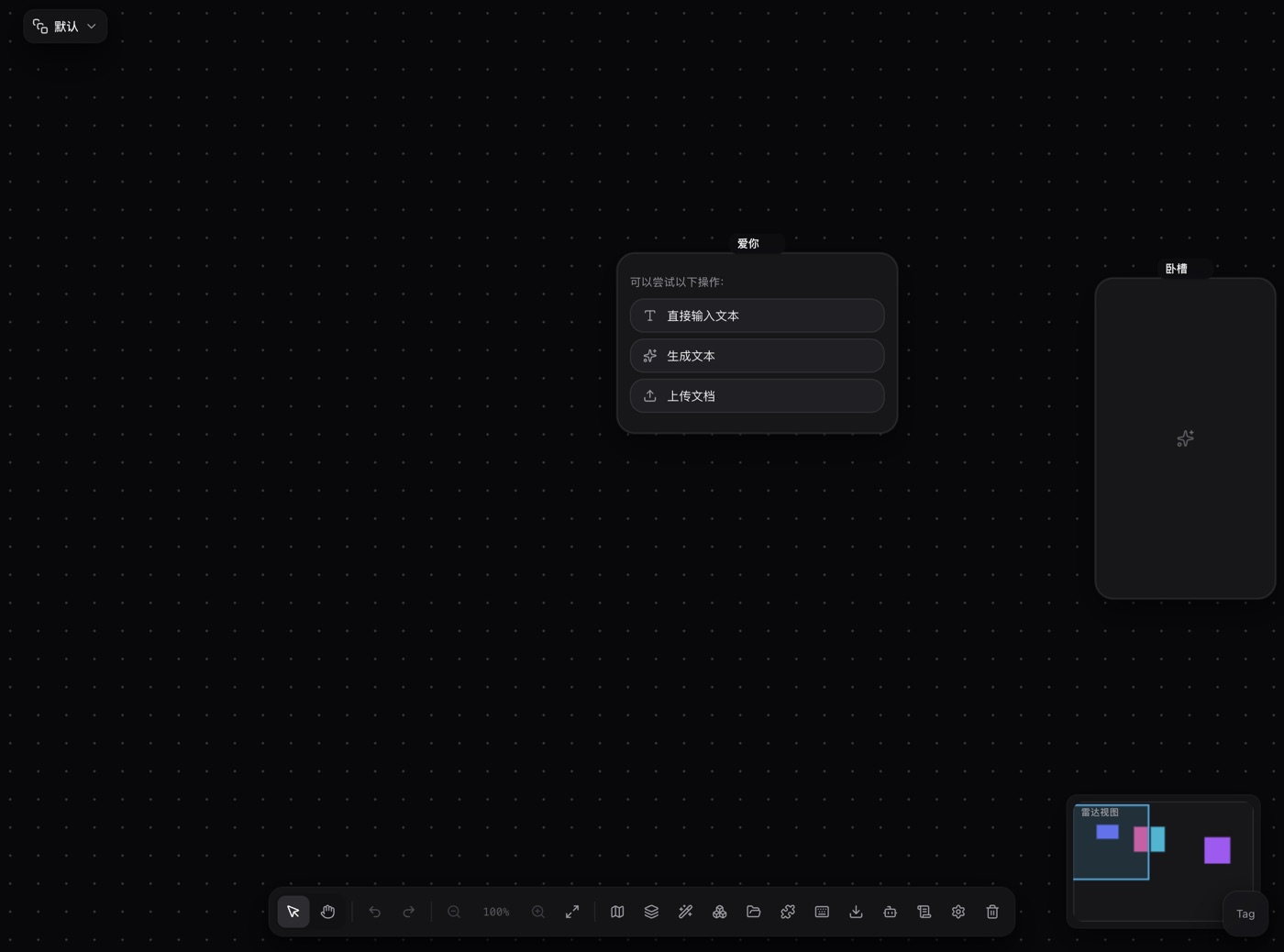
A narrated course is a handful of nodes in a row:
- script node: holds the verbatim script, one segment per sentence, with the sentences already cut.
- audio node: the voice track. The voice and the duration are picked on the node, and every segment uses the same voice with the same target length; there is a speed control too. Cloud TTS from a provider, or a local model behind your own key, both live at this layer.
- video node: takes the reference image and the voice track, with the duration set from the real length of that voice track. Models that support multimodal references send the reference audio along as reference material too.
- publish node: ships the finished piece to a platform.
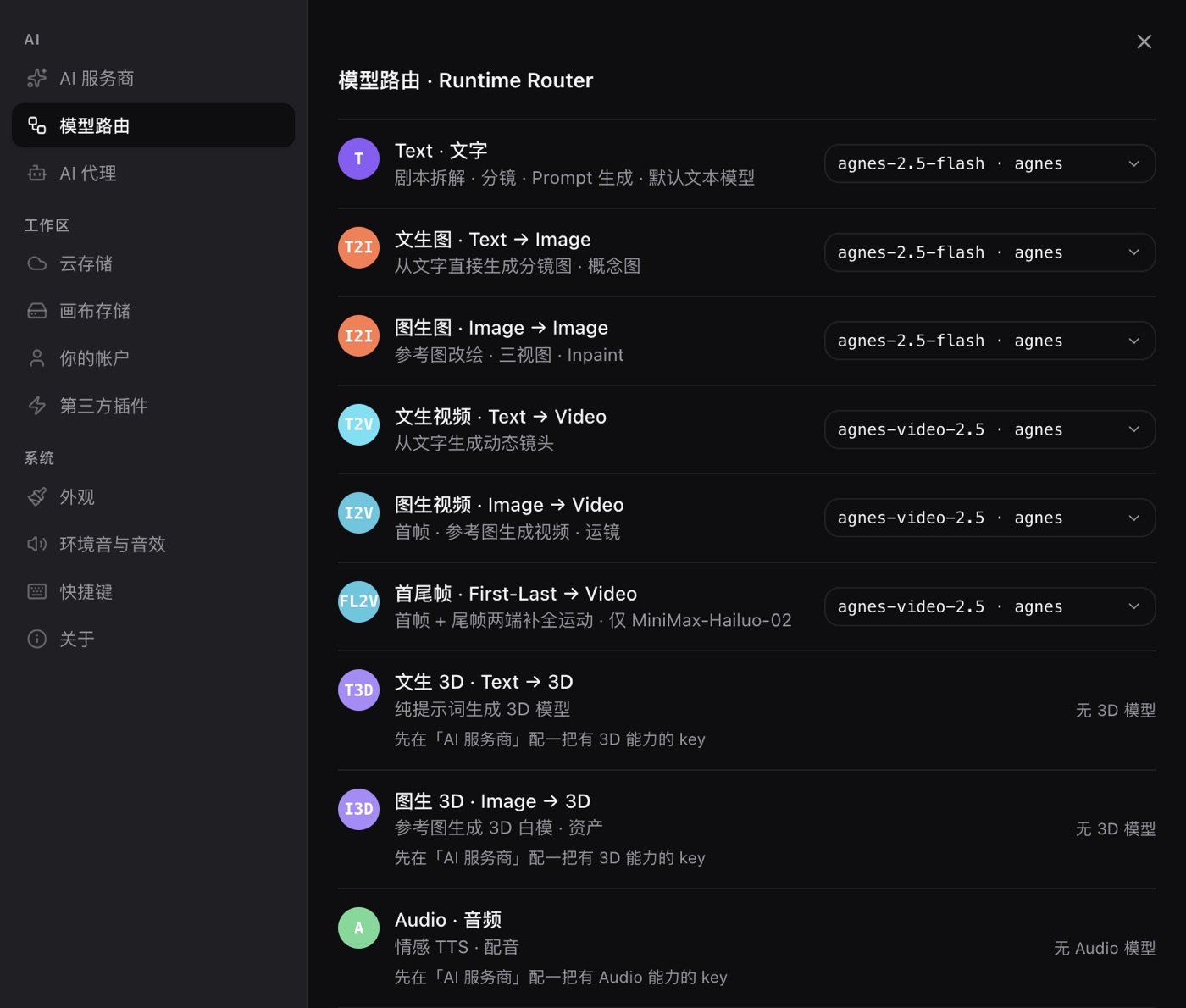
Settings, then Model routing, decides which provider and which model each task goes to. PolyCreator does not ship a lip-sync model of its own: the lip sync comes from the provider model you route the job to. The "Lipsync" row in the routing panel is an entry point for audio-shaped tasks, not a bundled implementation, and when a job reaches it with no vendor wired up, it reports the vendor as not configured. Text tasks can point at Ollama or LM Studio on your own machine, so script breakdown runs locally while voice and video run in the cloud.
The reference image is one node, wired out to every video node. That is what "one reference image rules all clips" looks like on a canvas: change it once, and every clip follows.
Plugins can contribute their own node types and settings tabs:
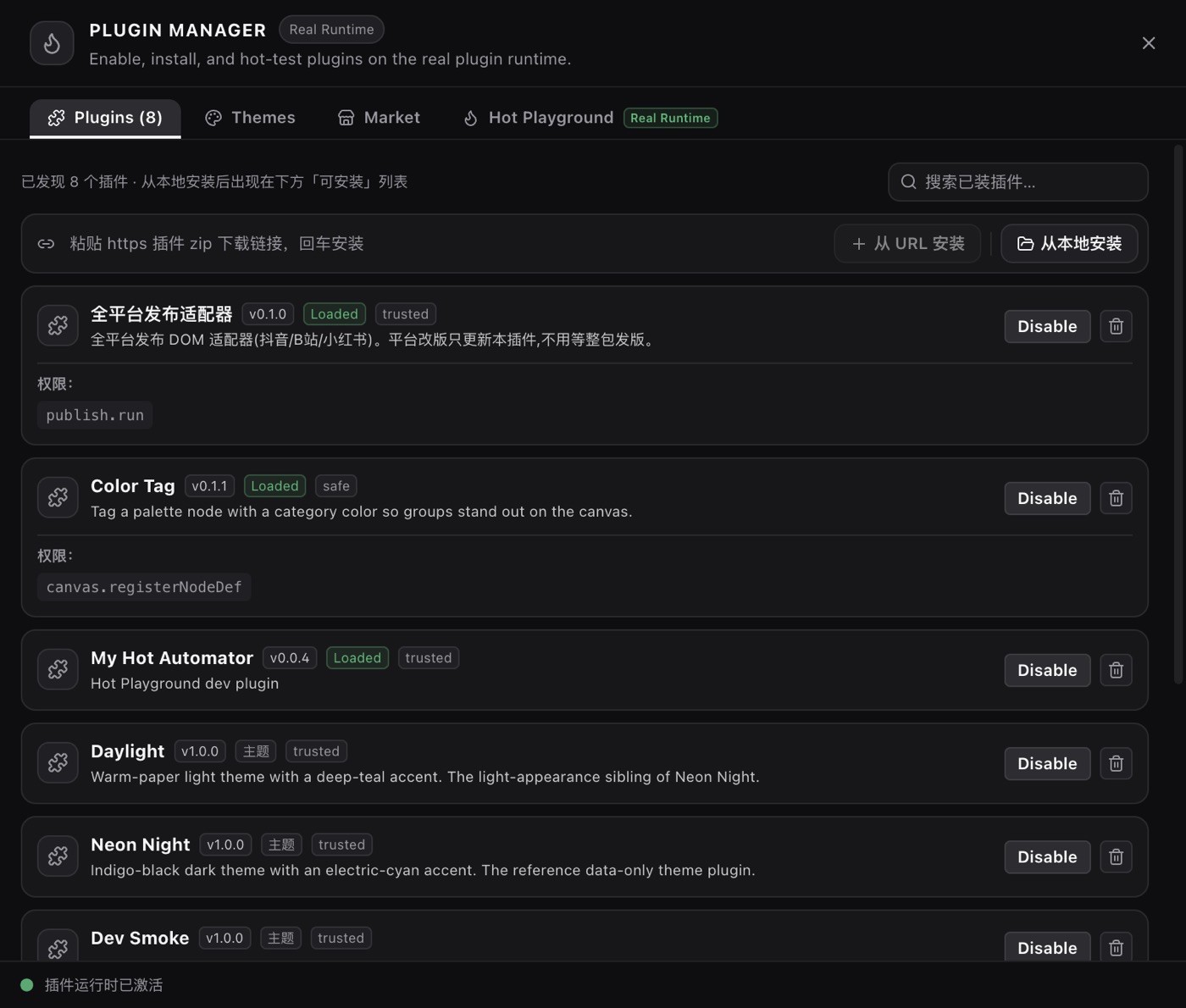
The node-by-node recipe:
- Write the script in the script node and cut it by sentence.
- Generate the voice track in the audio node, check each clip's duration, and write the numbers down.
- Wire the reference image node and the voice track into each video node, align the duration, and do not change the model or the route partway through.
- Once everything is generated, merge the clips with the composite node (this needs ffmpeg installed locally).
- Send it out from the publish node.
FAQ
Does PolyCreator have a built-in lip-sync model?
No. The app is the canvas and the scheduler; the lip sync itself comes from the provider model you route to.
The lip sync is half a beat off. What do I change first?
The audio. No BGM under the voice, cut on sentences, leave 200 to 300 milliseconds between them. Only once the audio is clean is it worth trying a different model.
How many segments should a lesson have?
Cut by sentence, one segment per sentence, three to eight seconds each. Longer sentences are hard to cut and hard to repair.
Two clips do not look like the same person. What do I check?
Three things: whether it is the same reference image, whether the model and route are the same, and whether the clips came from the same session.
Can I use local models?
Script breakdown can run on Ollama or LM Studio locally. Voice and video follow the provider you routed them to.
How does the billing work?
You are billed at your provider's rates and PolyCreator takes no cut. Your key sits in the OS keychain and is only read when a request goes out.
Read next
- Getting started: ten minutes to install the desktop app and learn the canvas
- Models and providers: BYOK, model routing, quota and billing
- Installing and managing plugins: add new node types and capabilities
- ComfyUI is too hard? A node-based image guide for beginners: the mental model behind node workflows