Stable Diffusion low VRAM how to run: local tuning knobs and the cloud alternative
Stable Diffusion low VRAM how to run: local tuning knobs and the cloud alternative
Long-tail queries: Stable Diffusion low VRAM how to run · run Stable Diffusion on Mac M1 M2 slow fix · local vs cloud AI image generation which better
Search "Stable Diffusion low VRAM how to run" and you land on people who have already hit the same wall: a CUDA out of memory error, or a three minute wait for a single image on an M1 or M2 while the fans spin up like a jet engine. A second group searches "local vs cloud AI image generation which better", trying to work out whether burning a local GPU or paying per request is the cheaper way to run.
This guide has three parts. First, the real numbers behind the pain. Second, the concrete local tuning options, what each one buys you and what it costs. Third, a local versus cloud comparison, the cloud-side answer in PolyCreator, and a short checklist for picking a side.
1 · The problem: out of memory, slow Macs, loud fans
Start with the numbers people actually recognise:
- 8GB of VRAM is not enough for SDXL. The SDXL UNet is substantially larger than SD1.5, so an 8GB card running at native resolution throws
CUDA out of memoryunless you enable memory optimizations or drop the resolution. - 16GB is the comfortable line. The rule of thumb that keeps repeating in community threads is 16GB: SDXL runs without heroics, while 8GB means "it runs, if you also tune the parameters."
- Apple Silicon shares its memory. The 16GB in an M1 or M2 is unified between CPU and GPU. The OS and background work take a slice first, so the space left for a model is smaller than the number on the box. An 8GB M-series machine is not a diffusion machine.
- The MPS backend has a ceiling. On macOS, PyTorch goes through the MPS path, where some operators are unsupported or fall back to the CPU. That is visibly slower than CUDA, and memory tricks like xformers simply do not apply on a Mac.
- A laptop also has to survive the heat. Sustained generation keeps CPU and GPU loaded, and fan noise, power draw and chassis temperature all climb with it.
So "it runs" and "it runs well" are two different things. The first one you can reach by tuning parameters. The second one takes new hardware, or moving the generation step off the machine entirely.
2 · Local tuning: what to change and what it costs
These are the levers the community reaches for most. Almost all of them trade speed or quality for memory. None of them is free.
| Measure | What it buys | What it costs |
|---|---|---|
| Swap the attention implementation (xformers / SDP / memory-efficient attention) | Lower peak memory during attention | xformers is picky about CUDA and PyTorch versions and often fails to install; unusable on Mac |
| attention slicing (attention in chunks) | Noticeably lower memory use | Slower generation |
| VAE tiling (decode in tiles) | High resolution decoding stops exploding | Slightly slower, occasional seams between tiles |
--medvram / --lowvram launch flags |
The runtime splits the work as needed and saves memory | Slower throughout, and some pipelines degrade |
| FP16 half precision | Roughly halves the memory footprint | A few operators become numerically unstable, and some models come out washed out |
| Use a smaller model (SD1.5 instead of SDXL) | Memory and time drop together | A tier lower on the quality ceiling, weaker composition and text |
| Lower the resolution (512 instead of 1024) | Memory and time fall with the pixel count | Less detail, and you cannot go straight to a high resolution output |
| Set batch size to 1 | Saves memory | Batch work becomes one image at a time |
| Quantized weights (NF4 / FP8 style) | Runs a bigger model on less memory | Depends on the quantization implementation, quality varies |
| Apple: use the MPS backend plus ComfyUI's MPS support | At least it runs on a Mac | Far slower than CUDA, some operators fall back to the CPU |
Apple: --preview-method none |
Turns off the live preview and drops that overhead | You no longer watch the image form |
Stack these and an 8GB machine does run. The price is speed, some quality, and a fair amount of time spent configuring the setup in the first place. The real question is this: are you optimising the memory on one card, or are you moving the whole generation step elsewhere?
If the machine in front of you is a Mac
The order matters here, because each change makes the next one easier to read. Work down the list and stop as soon as the image comes out at a speed you can live with.
- Use the MPS backend instead of falling back to CPU, and make sure the tool you picked supports it.
- Turn off the live preview (
--preview-method none). It is pure overhead on a unified memory machine. - Start at 512 resolution and raise it only if the machine holds steady. A resolution the model cannot fit will fail rather than merely slow down.
- Keep the batch size at 1, and disable VAE tiling until you actually need a large output.
- Accept the remaining gap. Even configured well, MPS is well behind a CUDA card, and no flag closes that gap. When you reach this point, the honest comparison is no longer "which parameter", it is "how much is my time worth".
3 · Local versus cloud: where the money goes
| Dimension | Running diffusion locally | Cloud API |
|---|---|---|
| Upfront cost | One-time hardware: a GPU, or a Mac with enough memory | No hardware outlay, you pay per request |
| Ongoing cost | Electricity and device depreciation | Every call is billed, you pay for what you use |
| Privacy | Data never leaves the machine | Requests go to the provider you chose |
| Speed | Bounded by your hardware, and slow is slow | Depends on the provider's queue and compute |
| Quality ceiling | Limited to the biggest model your hardware can run | You can call the current top tier directly |
| Maintenance | You handle drivers, dependencies, model versions, disk | The provider handles the environment and model updates |
| Flexibility | You can train your own LoRAs and build custom sampling pipelines | You are limited to the endpoints and parameters the provider exposes |
| Who it suits | People who train models, need offline, or have steady volume | People whose hardware is too small, whose volume is high, or who want the newest models |
Put plainly: local trades one-time hardware for ongoing electricity, cloud trades per-request billing for zero maintenance. The money lands in different places, so there is no absolute winner, only a match against what you actually do. For unit prices, check each provider's own pricing page. This guide keeps no price table on purpose, because the numbers move too fast and a stale table misleads more than it helps.
The arithmetic is simpler than people make it. Local cost is a purchase you make once and then mostly forget, amortised across however many images you generate. Cloud cost is a running total that scales with usage, and it is zero on a quiet week. That means the crossover point depends on your volume: heavy daily use pushes you toward a local card, occasional use stays cheaper on the cloud because you never had to buy the card at all. The other half of the equation is time. A local run that takes twenty minutes per image has a cost that never shows up on an invoice.
4 · How PolyCreator does it: no local model, canvas plus routing
Straight answer first: PolyCreator does not run Stable Diffusion locally, and it ships no built-in diffusion model. It is the desktop canvas and workflow layer. The actual image generation is done by the provider API you configure, and the model runs on that provider's servers.
Three consequences follow:
- Your machine does not need to hold model weights in VRAM. A laptop, a desktop, an office box with no discrete GPU all work, because the canvas itself does not need a graphics card.
- Models are picked by name, not by file. Switching to a newer tier is a configuration change. No weight downloads, no disk budget to plan.
- Local and cloud mix freely. Light tasks such as text can point at Ollama or LM Studio running on your own machine, while image and video work goes to a cloud provider.
Step one is to paste your own key in Settings → AI providers.
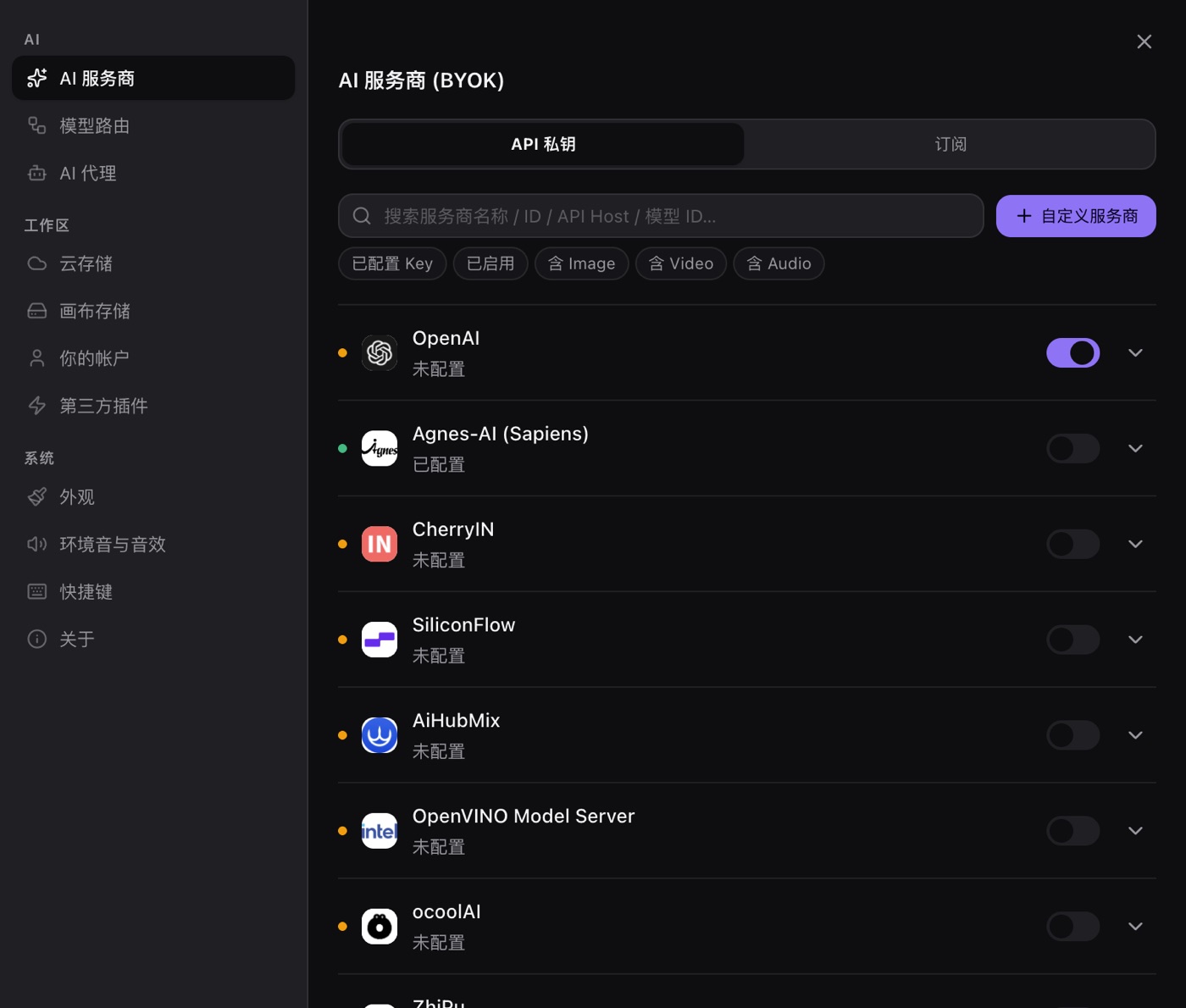
Keys live in the OS keychain on your machine, encrypted through safeStorage, and are only read when a request goes out. The app never proxies your key and never adds an inference fee of its own, so the bill you see is your provider's bill.
Step two is to assign a provider and a model to each kind of task in Settings → Model routing.
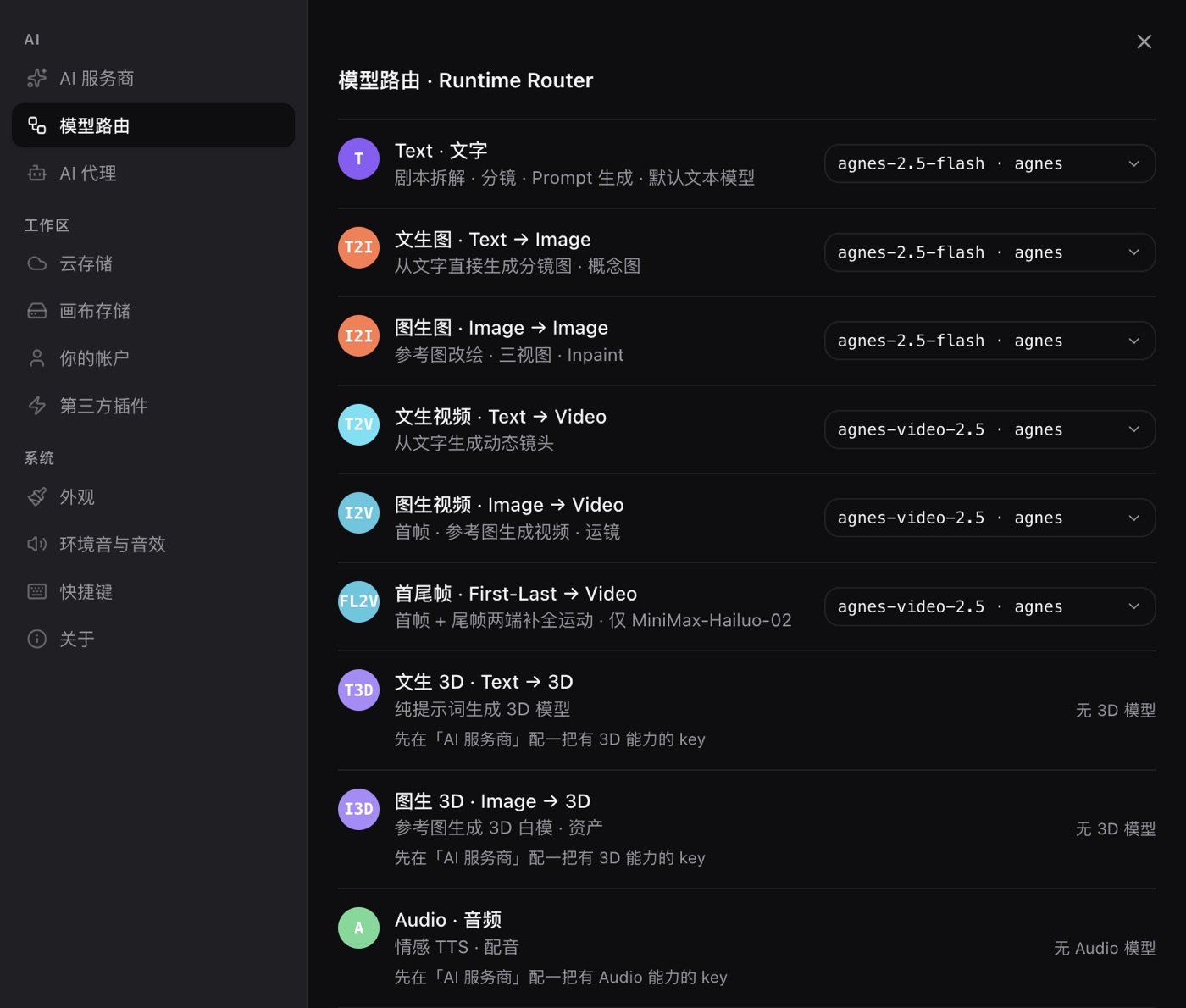
Routing is where the split by workload happens. A text task can point at Ollama or LM Studio on your own machine, so that model runs locally and nothing leaves the network, while text to image and video tasks point at a cloud provider. You can also pick a model per node, so trying a different configuration for one job leaves the global setup alone.
Step three is to wire the nodes on the canvas and run.
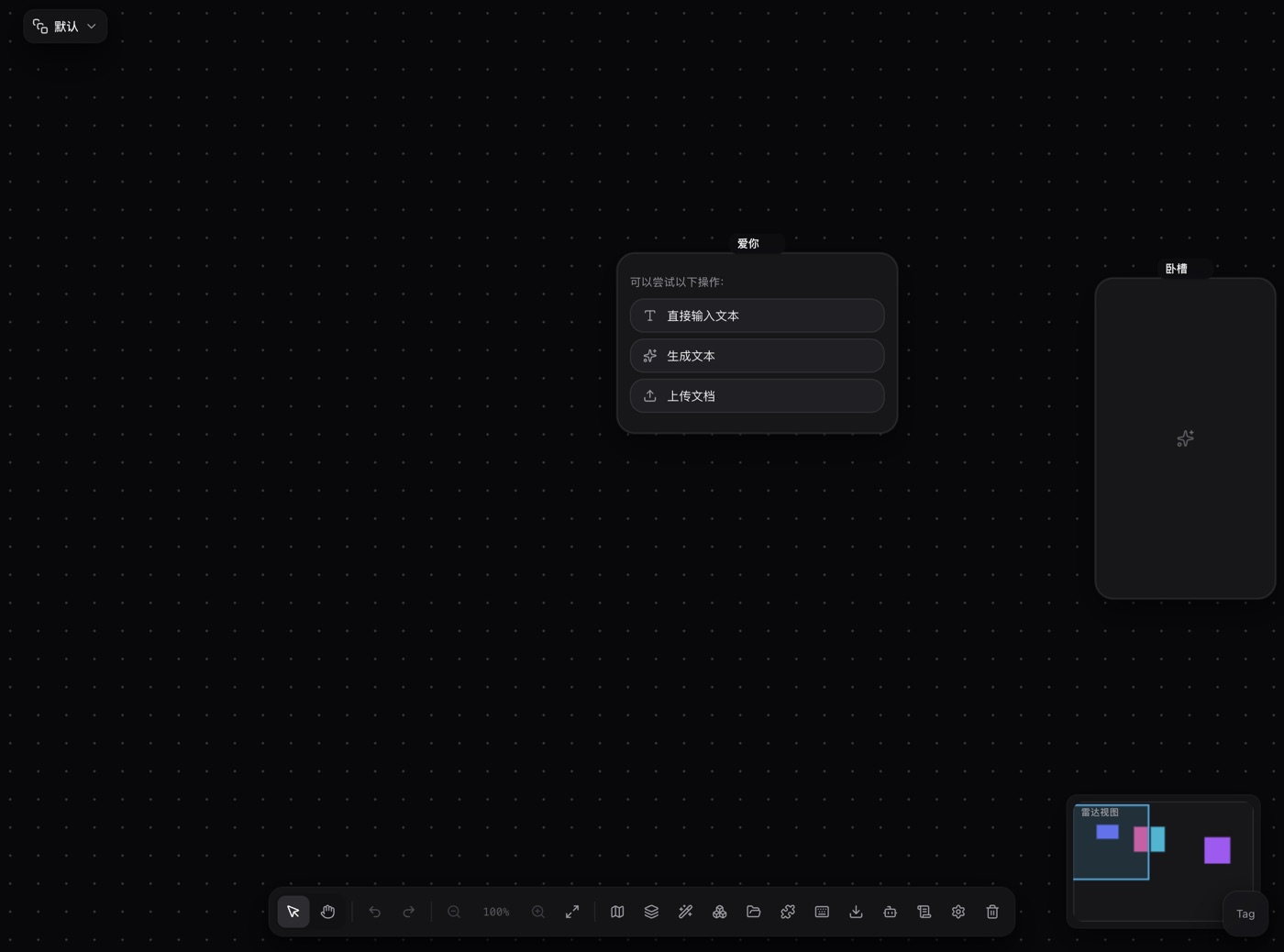
That is the real canvas: input, text and video generation nodes connected into a flow, with the result landing inside the node.
One boundary worth stating plainly: the app's local model support covers text models (local inference services such as Ollama and LM Studio) and does not include local diffusion models. If you need Stable Diffusion on your own hardware, that route still goes through ComfyUI or AUTOMATIC1111, and you shuttle assets between the two tools yourself.
A mixed setup that tends to work well
The routing model is most useful when the two routes are treated as one pipeline rather than a choice. A common shape:
- Text tasks, local. Script breakdowns, shot lists and prompt rewriting run on an Ollama or LM Studio model on your machine. Nothing leaves the network, and the cost is zero.
- Image and video tasks, cloud. These are the tasks that need real GPU memory, so they go to a provider whose hardware you do not have to own.
- The canvas in between. You assemble the text output into prompts, run the image task, feed the result back into the next node, and export.
Nothing about that setup requires giving up the local route you already have. It removes the one job that your hardware was never going to do well.
5 · A decision checklist: four questions
Ask them in order:
- How much VRAM or unified memory do you have? Under 8GB, or integrated graphics only, means go straight to cloud. The tuning effort will not pay for itself.
- Is the data allowed off the machine? If it cannot leave (confidential work, an offline environment), you must run local, and you accept the speed and the quality ceiling that comes with it.
- Do you need it to run, or to run well? An occasional test image is fine locally. Batch work, high resolution, or the newest model capabilities are cheaper in the cloud.
- Do you need to train your own models (LoRA, fine-tuning)? If yes, stay local. It is the strong suit of the local route and something cloud APIs do not offer.
If any of the four answers "must be local," take the local path. Otherwise the cloud route is usually less work.
FAQ
Can PolyCreator run Stable Diffusion locally?
No. The app ships no diffusion model and does no local inference. Image generation calls the provider API you configured, and the model runs on that provider's hardware.
So what can I do on a Mac?
The work that does not need a graphics card: canvas layout, wiring nodes, asset management. You can also route text tasks to a local Ollama or LM Studio instance.
Does the cloud always cost more?
Not necessarily. At low volume, per-request billing is cheap. At high volume, or when you need models refreshed often, spreading the cost of one-time hardware across many runs can work out cheaper.
Does quality drop when generation runs remotely?
No. Output quality depends on which model you pick, not on which machine inferred it.
Where are my keys stored?
In the OS keychain on your machine, encrypted with safeStorage, and read only when a request is sent.
Read next
- Getting started: install the desktop app and learn the canvas in ten minutes
- Models and providers: BYOK, model routing, quota and billing in full
- Installing and managing plugins: add new node types and capabilities to the canvas