Getting started
What this covers: downloading, signing in, and meeting the interface for the first time. For: new users — ten minutes to creating.
New to PolyCreator? Three steps and you are creating within ten minutes.
1. Download and install
Open the download page and pick the installer for your system:
macOS, Windows, and Linux builds are all there, each card showing the version,
size, and SHA-256 checksum.
Current builds are not code-signed, so expect one system prompt on first launch:
- macOS: allow it under System Settings → Privacy & Security.
- Windows: on the SmartScreen block, click “More info → Run anyway”.
2. Sign in
Desktop sign-in uses a browser-confirm flow: click sign-in in the app, a
browser window opens, confirm there, and the app finishes signing in
automatically. Local features work regardless of sign-in state.
See Account & sign-in for details.
3. Meet the interface
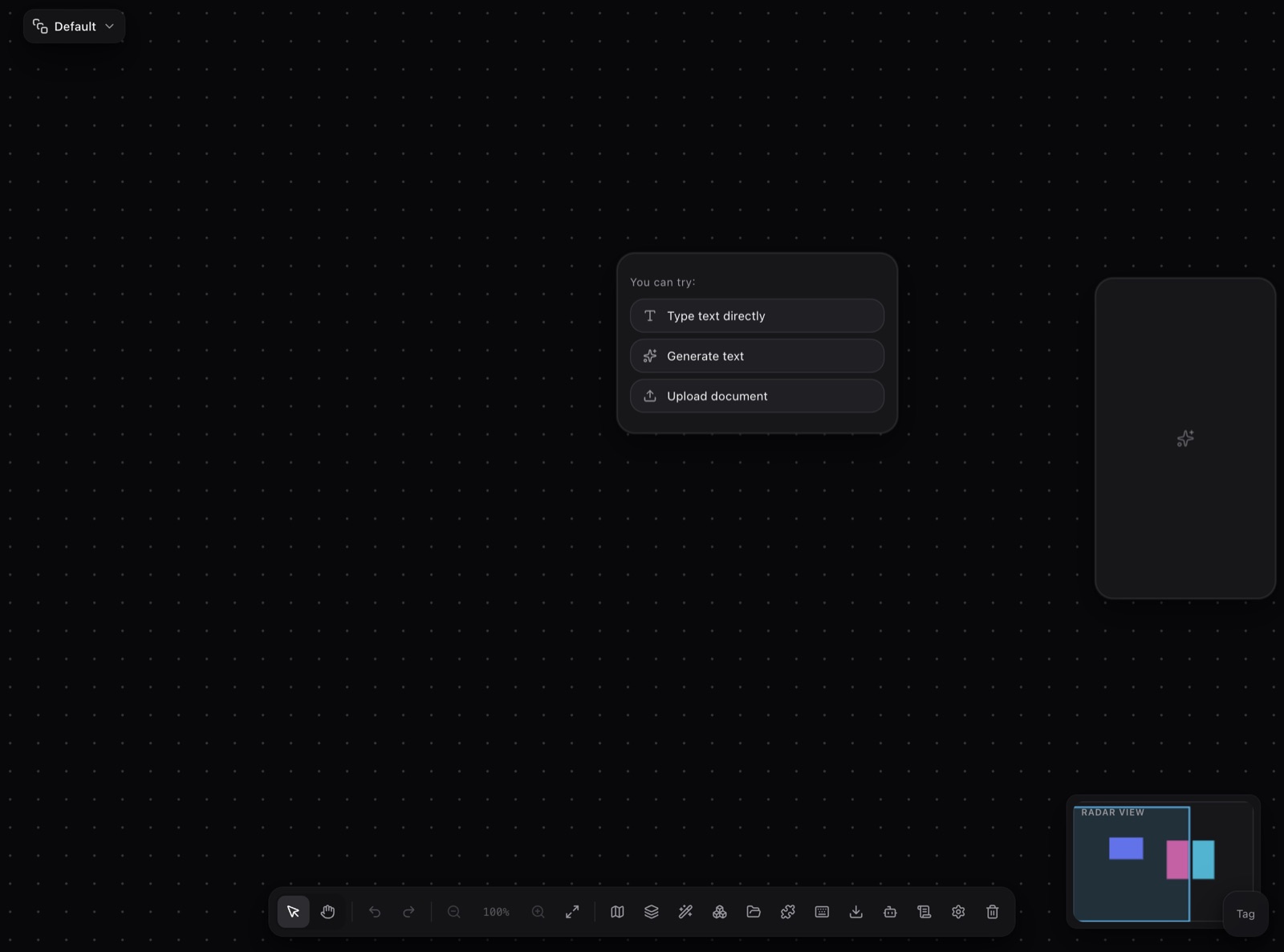
- Canvas: text, image, video, and audio are nodes on one editable graph —
wires are the workflow. - Plugin marketplace: the in-app “Market” tab installs community plugins;
see Installing & managing plugins. - Themes: pick a look in the theme marketplace; one click
reskins the app. See Using themes. - Settings: model and provider configuration lives in settings; see
Models & providers.
Next steps
- Want a new look? Read Using themes.
- Want to bring your own API key? Read Models & providers.
- Hit a problem? Check the FAQ first.