ComfyUI alternative for beginners — node-based image generation with no setup
ComfyUI alternative for beginners — node-based image generation, no setup
Long-tail queries: comfyui alternative for beginners · how to use comfyui workflows without installing · easy AI image generator with nodes no code
ComfyUI is the node-based AI image tool people recommend most, and the one that turns people away fastest. Search "comfyui alternative for beginners" and the same question repeats: it won't install, it installs but never produces an image, the node versions conflict, VRAM runs out, and nobody knows where to get a working workflow.
This guide covers three things: where ComfyUI's real barrier is, what a no-install node-based alternative looks like, and how to actually use one.
1 · Where the ComfyUI barrier really is
Be precise about this — it decides what an alternative has to solve.
Barrier 1: the local environment
ComfyUI is a Python project. The standard install is: clone the repo, install PyTorch, install dependencies, download model weights. For anyone who does not write code, the first step already blocks them — wrong CUDA version, dependency conflicts, a model directory that has to be exactly right.
Barrier 2: model weights
Models do not ship with the program. You download them yourself: an SDXL base model is ~7GB, SD1.5 ~4GB, plus VAE, ControlNet, LoRAs, upscalers. A usable setup is easily 100GB+, and you manage the disk, the download speed, and the folder layout.
Barrier 3: workflows
This is the part that deters people most. A ComfyUI workflow is JSON, and the wiring IS the logic. Without a ready-made workflow you build one: load checkpoint → positive prompt → sample → decode → save. You also have to understand the parameters (steps, CFG, denoise). Copy someone else's workflow and it may still fail because a node is missing or the version differs.
Once you have a JSON file in hand, comfyui workflow templates free download: where to find them, how to adapt one, how to save your own covers which nodes to change and which parameters you can copy as they are.
Barrier 4: VRAM
Local generation eats VRAM. 8GB cards need attention slicing for SDXL; 16GB+ is comfortable. Mac users additionally hit the MPS backend and unsupported operators.
When the card is not enough, the local tuning knobs and what local and cloud each cost are covered in Stable Diffusion low VRAM how to run: local tuning knobs and the cloud alternative.
The takeaway: ComfyUI's barrier is not the node graph itself — it is "local environment + model management + workflows" as a bundle. What people actually want is the node-style expression of parameters, without the folder tree.
2 · Three routes
| Route | Install | Models | Workflow | Who it fits |
|---|---|---|---|---|
| ComfyUI, local | Yes | You download and place them | You build/copy JSON | Full control, training your own models |
| Cloud ComfyUI | No | Hosted | Host provides templates | Fine with hourly billing, no tinkering |
| Browser node-based tool | No | Hosted | Drag nodes, connect them | Want an image first, decide later |
The third row is the answer to "comfyui alternative without installing": keep the node expression, host the environment, the models, and the workflow library.
3 · How PolyCreator does it
PolyCreator is a desktop AI video canvas. Node-based image generation is core to it: text, image, video, and audio are all nodes on the canvas, and the connections are the pipeline.
1 · Installed is all it takes — no Python
Install the desktop app, open the canvas. No PyTorch, no weight downloads, no directory layout. Models live on the server, nodes live on the canvas.
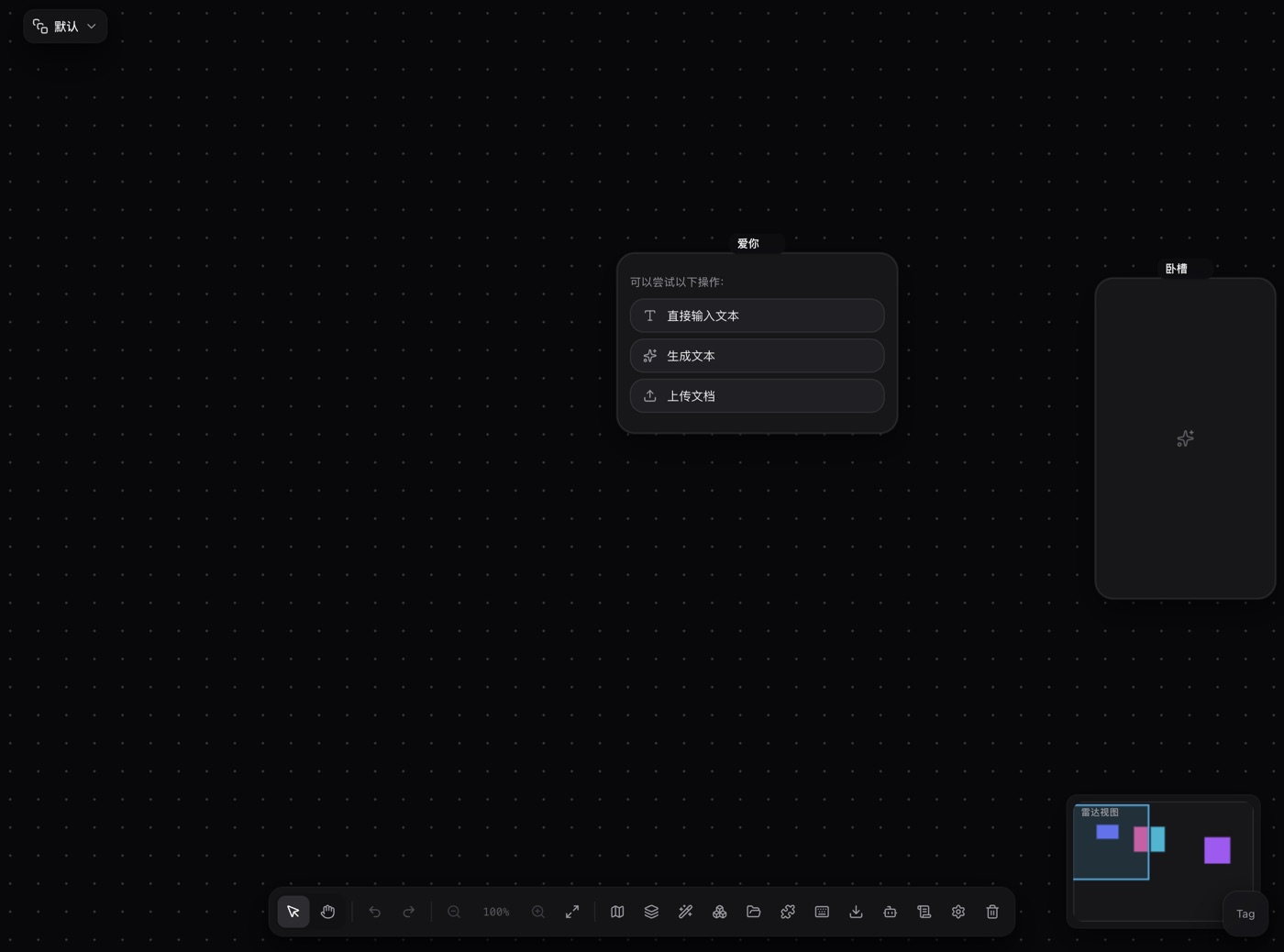
That screenshot is the real canvas: input nodes on the left, processing in the middle, a video generation node on the right, and the connections expressing the data flow. Same mental model as ComfyUI, with the environment already assembled.
2 · Bring your own API key
Models are reached with your own API key, which removes barrier 2 (weights) and barrier 4 (VRAM) in one move.
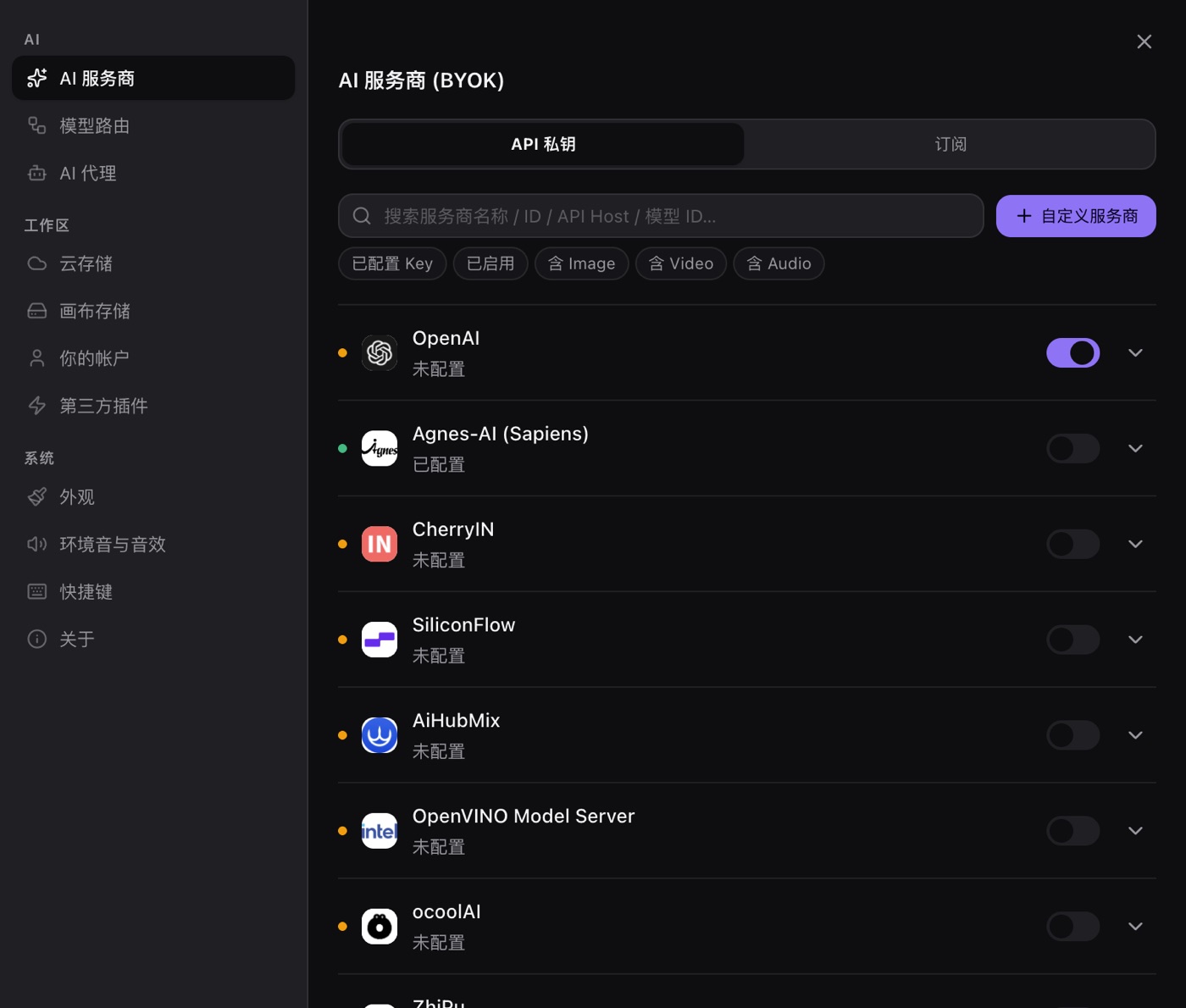
Open Settings → AI providers, paste a key, and the corresponding provider becomes usable. Keys are stored in the OS keychain (encrypted via safeStorage) and only read when a request goes out.
This matters most if you already pay for ChatGPT / Claude / Gemini: you are not buying a second inference bill, you are pointing the canvas at the key you already have.
3 · Pick a model per node
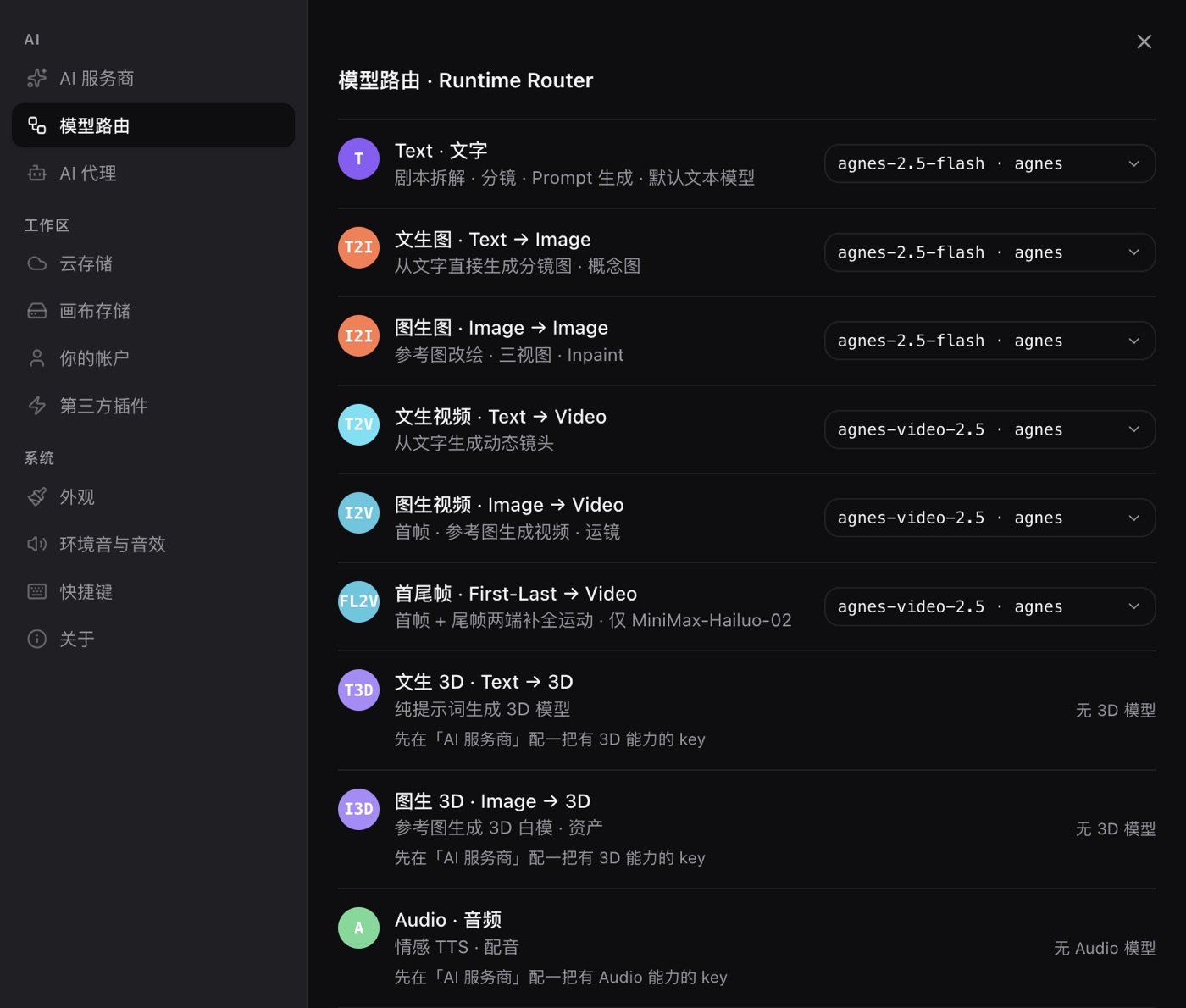
Settings → Model routing assigns a provider and model to each task: text, image, video, audio. This is ComfyUI's "load checkpoint + pick a sampler" step, minus the file downloads and the workflow JSON surgery.
Want a different model? Change one route setting; the next node uses it. Nothing else moves.
4 · Add what is missing with plugins
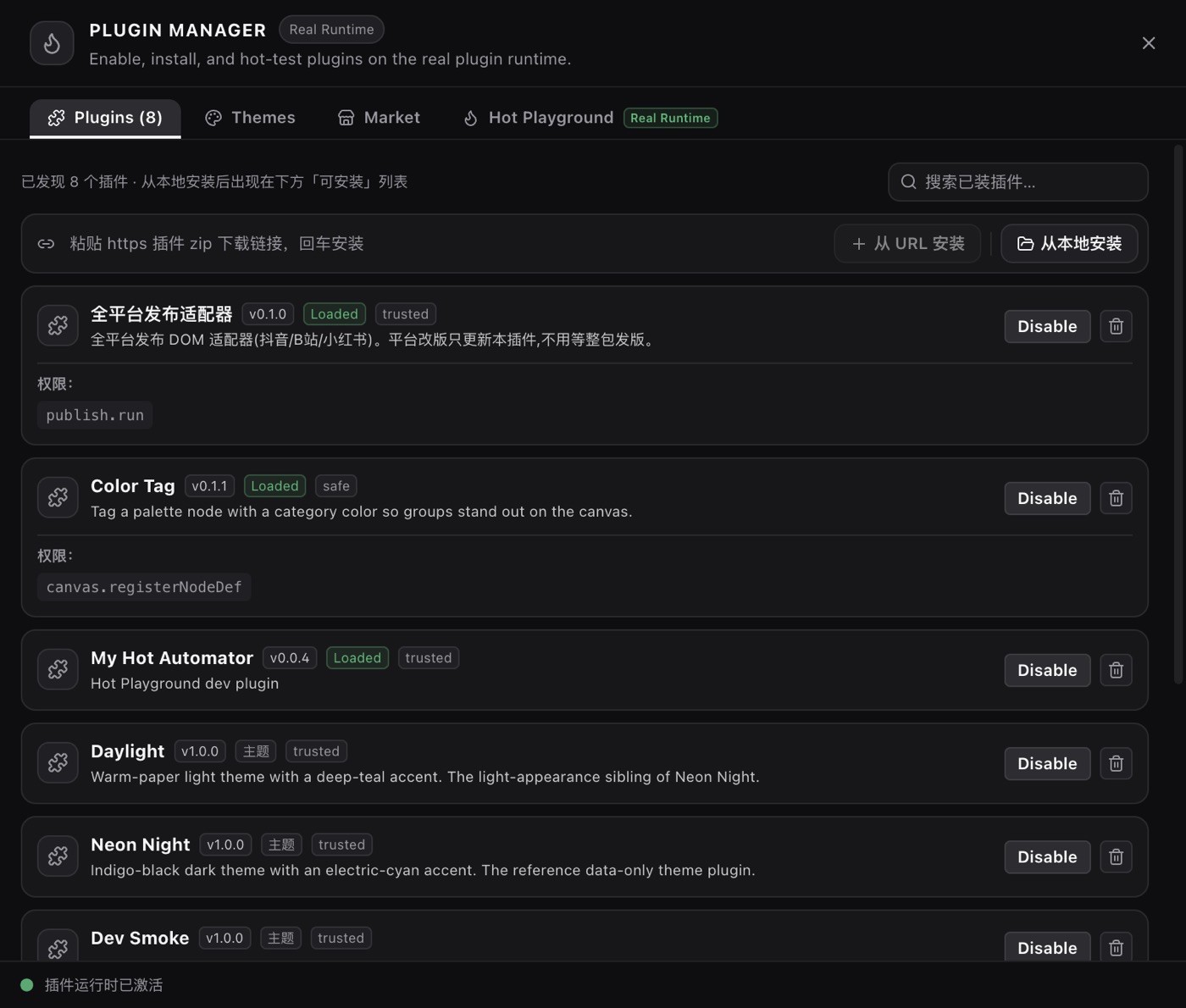
ComfyUI grows through community nodes; PolyCreator grows through the same open route — a public plugin SDK, a browsable marketplace, install and go. The difference is that plugins cannot break your Python environment, because each one runs sandboxed.
4 · How to choose: when ComfyUI is still the right call
PolyCreator is not a wholesale replacement for ComfyUI. Keep using ComfyUI when:
- You train your own models (LoRA, DreamBooth, embeddings) — that is ComfyUI's home turf
- You need exact control of sampling (custom schedulers, inpainting regions, multi-pass pipelines)
- You must run local models (offline, privacy, no egress)
- You want to plug your own Python nodes into the graph
But if what you need is "turn a prompt into an image, see the flow, change it, and not spend a day on ops first", a tool that is installed and ready, bills your own key, and expresses the pipeline as connected nodes cuts the friction by an order of magnitude.
5 · First image in five minutes
- Install PolyCreator (macOS / Windows / Linux)
- Open the app, add an image node on the canvas, type a prompt
- No key yet? Settings → AI providers, paste a key for a service you already use
- Run it, and the result lands in the node
- Want a variation? Connect the result into another node and keep processing — the ComfyUI idea, minus the setup
No Python, no weights folder, no workflow JSON errors.
The first image comes out, and then the hand has an extra finger or the poster headline turns to gibberish — that is a prompt-structure problem, covered in AI image hands deformed how to fix — extra fingers and garbled poster text.
6 · If you already run ComfyUI
Plenty of people read this after years on ComfyUI. A short, honest map of what carries over and what does not.
Carries over
- The mental model: nodes are steps, edges are data, and the graph is the pipeline. That intuition is the same, and it is the part worth keeping.
- Iteration habits: branch a result into a second node, compare two prompts side by side, keep a scratch canvas for experiments.
- The willingness to think in terms of reusable building blocks rather than one-shot commands.
Does not carry over
- Checkpoints and LoRAs you trained. Model files are local to ComfyUI; a PolyCreator canvas talks to API models. If your advantage is a custom-trained LoRA, stay on ComfyUI for that work.
- Custom Python nodes. Anything you wrote as a Python node has no host here. The plugin SDK covers packaged JavaScript plugins, which is a different extension model.
- Pixel-level sampler control. ComfyUI exposes samplers, schedulers, and denoise as first-class knobs. PolyCreator routes by task and model; it does not expose sampler internals.
- Local-only pipelines. Ollama and LM Studio cover text and local chat models. Local diffusion weights are still ComfyUI's job.
What you gain
- No environment to maintain, no disk budget, no version conflicts, no CUDA setup on a new machine.
- Models that are current, because they are commercial APIs you call by name rather than files you chase.
- A desktop app that starts in seconds and works on a laptop that would never run SDXL.
What it costs
- Per-request API spend instead of one-time hardware.
- You are inside someone else's model catalog.
A reasonable split is to keep ComfyUI for what you have already invested in, and use a browser-based node canvas for the work that is idea-shaped rather than pipeline-shaped.
FAQ
Does PolyCreator support ComfyUI's custom nodes?
No — ComfyUI's Python nodes need a local Python runtime, which is the source of the barrier. PolyCreator has its own plugin SDK (public, MIT); plugins are packaged JS running in a sandbox.
Can I work offline?
Yes. The desktop app talks to local services such as Ollama and LM Studio, so the model runs on your machine and nothing leaves the network. That covers text and local models.
Are the node types limited?
The core types are built in (text, image, video, audio, script, 3D, …); plugins can contribute their own node types and workflow components.
Is the output quality worse than SDXL?
Not comparable. PolyCreator calls commercial model APIs (the provider you choose), so quality matches that model; the ComfyUI route is for local open-weight models. Different ceilings.
Can I move my ComfyUI workflow over?
Not directly — a ComfyUI workflow is JSON describing ComfyUI nodes, and PolyCreator's nodes are a different set. What transfers is the shape of the pipeline: which step feeds which, and what each step is responsible for. Rebuild that graph in PolyCreator (usually a handful of nodes) and point each node at the model you want.
What happens to my prompts and images?
They stay on your machine unless a node sends them to a provider — which it does when you run a generation, exactly as with any API call. Text you type in a node goes to the provider you configured for that task; nothing is stored on our servers beyond the request itself.
Read next
- comfyui workflow templates free download: where to find them, how to adapt one, how to save your own: where workflow templates come from, and which nodes to change once you have one
- AI image hands deformed how to fix — extra fingers and garbled poster text: the before-and-after prompts for a first image whose hands or poster lettering break
- Stable Diffusion low VRAM how to run: local tuning knobs and the cloud alternative: the local tuning knobs, and what local and cloud each cost
- Models & providers: BYOK, routing, quota and billing in full
- Installing & managing plugins: marketplace, URL installs, updates
- Getting started: ten minutes in
What to do next
You have read it; the canvas is now on your desktop.
- Download the PolyCreator desktop app: macOS, Windows and Linux — installed and running with your own API key.
- Browse the plugin marketplace: add node types, reach more model providers, or find a theme that fits.